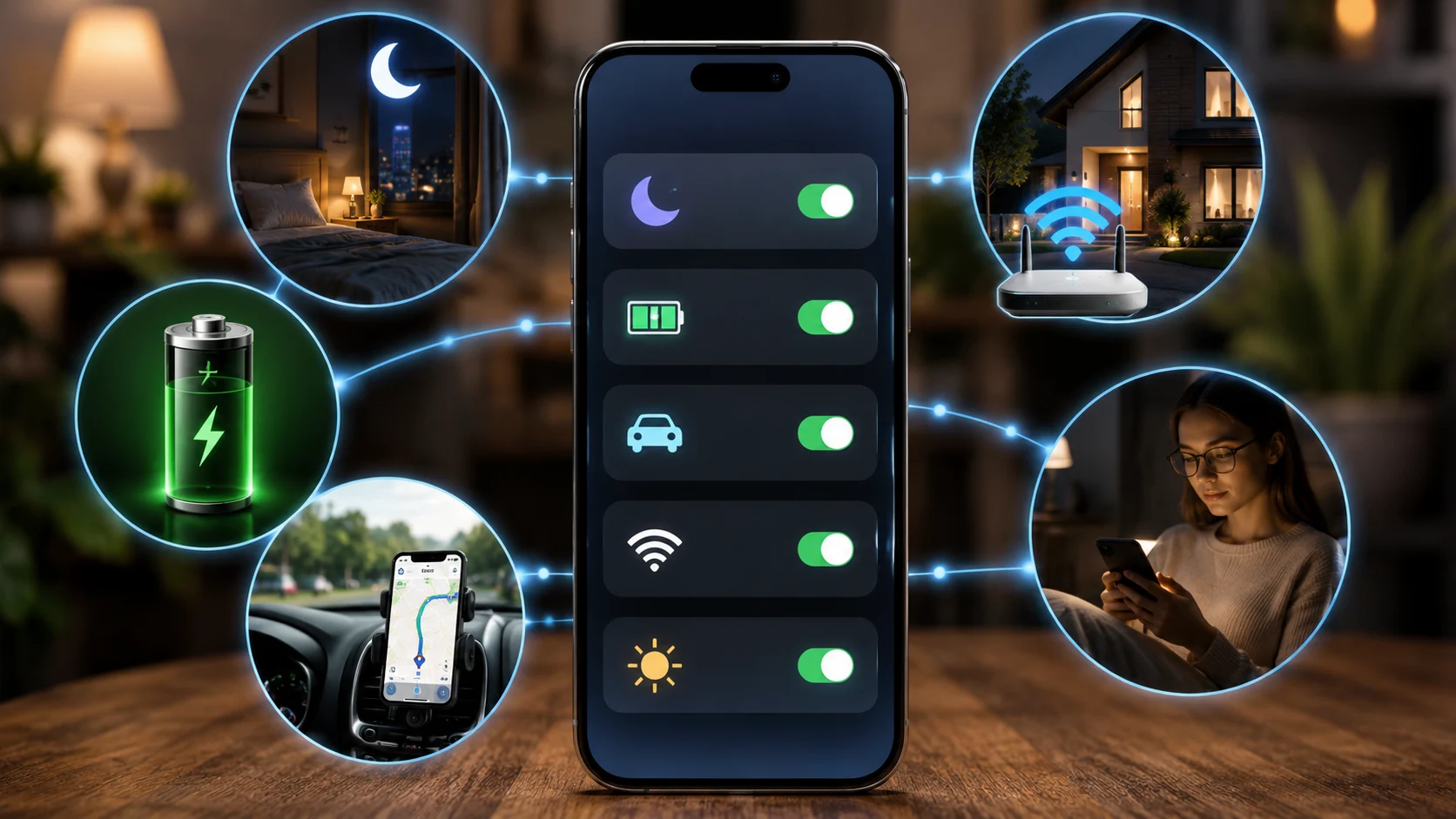
Today’s smartphones are fully capable of handling dozens of minor daily tasks without your intervention. Instead of manually toggling silent mode every night, enabling Bluetooth in your car, or worrying about battery life, you can configure these tasks once and let internal routines handle the rest.
All the necessary tools are already built into your operating system. On iPhone, you’ll use the standard Shortcuts app (under the Automation tab). On Samsung smartphones, head to Modes and Routines in Settings, while other Android devices use Google Assistant Routines or Rules (depending on your brand’s software interface). They all operate on a simple logic: select a trigger event and define the action your phone should execute.
1. Peaceful Nights: Automatic “Do Not Disturb”
Instead of fumbling for toggles in the dark before going to bed, sync silent mode to a specific schedule or to the moment your phone starts charging. Simply set your preferred timeframe, and once the hour hits, notifications won’t interrupt your rest.
You define the condition—for instance, from 11:00 PM to 7:00 AM, or whenever the device plugs into power during evening hours. Incoming calls and alerts silence automatically, the screen dims, and everything resets back to normal in the morning.
How to enable it
- On iPhone: Open Settings → Focus → Do Not Disturb. Scroll down to “Set a Schedule” and add your preferred time range (e.g., 11:00 PM to 7:00 AM).
- On Android / Samsung: Go to Settings → Modes and Routines (or Notifications → Do Not Disturb), select “Turn on as scheduled,” and set your hours.
2. Smart Battery Saver at Low Charge
By default, Low Power Mode prompts you to turn on when your battery drops to 20%. You can make this threshold far more flexible so your phone dims screen brightness and throttles background processes earlier.
Set a simple condition: if your battery level drops to 30–35%, your phone automatically reduces display brightness, shuts down unnecessary background operations, and enters power-saving mode. Your device will easily last through the evening without extra reminders or low-battery warnings.
How to enable it
- On iPhone: Open the Shortcuts app → Automation tab → tap + → select Battery Level. Adjust the slider to 30% (“Falls Below 30%”) and add the action “Set Low Power Mode” to On.
- On Samsung / Android: In Settings, go to Modes and Routines → Routines. Under the “If” section, select Battery level (≤30%), and under the “Then” section, set Power saving to On.
3. Hands-Free Music and Navigation in Your Car
Tapping through menus every time you step into your vehicle wastes valuable time. Your phone can detect when you’re driving and immediately prepare everything you need for the trip. The routine triggers the exact moment your device links to your car’s Bluetooth system, launching your navigation app or playing your favorite playlist or podcast completely hands-free.
How to enable it
- On iPhone: In the Shortcuts app (Automation tab), create a new trigger: Bluetooth → select your car’s Bluetooth name. Under actions, add “Open App” (choose Navigation or your preferred Music app).
- On Android / Samsung: In Routines, add a new rule: set the “If” condition to “Connected to Bluetooth device” (your car), and set the “Then” action to launch your app or start media playback.
4. Auto-Disable Wi-Fi Away From Home
When you step outside, your Wi-Fi module continuously scans for familiar networks, unnecessarily draining your battery. Automatically turning off Wi-Fi outside your home conserves battery power and improves security.
This automation relies on location data or the loss of connection to your home router. The moment you leave home, Wi-Fi turns off; as soon as you return, it turns right back on.
How to enable it
- On iPhone: In Shortcuts Automation, create a scenario with the “Leave” trigger (enter your home address). Under actions, choose Set Wi-Fi → Turn Off.
- On Android / Samsung: Under Settings → Wi-Fi → Advanced / Intelligent Wi-Fi, enable “Turn on Wi-Fi automatically” (the system remembers your router’s location), or set up a location-based Routine.
5. Eye Protection for Evening Reading
If you frequently read e-books or long articles at night, you can customize your display specifically for reading apps to reduce strain on your eyes.
The system monitors when a specific application (such as an e-reader or browser) opens after sunset. It automatically applies a blue light filter and lowers brightness to a comfortable level, restoring standard settings as soon as you close the app.
How to enable it
- On iPhone: In Shortcuts Automation, select the “App” trigger (choose your reading app or browser). Under actions, add “Turn Night Shift On” or decrease display brightness.
- On Android / Samsung: In Routines, set the “If” condition to “App opened” (your reading app), and set the “Then” action to enable “Eye comfort shield” or adjust display warmth.
Modern smartphones are capable of far more than we typically rely on every day. A few tweaks to your default settings can make your device run smoother, extend battery life, and save you daily friction.
Більше новин в телеграмі