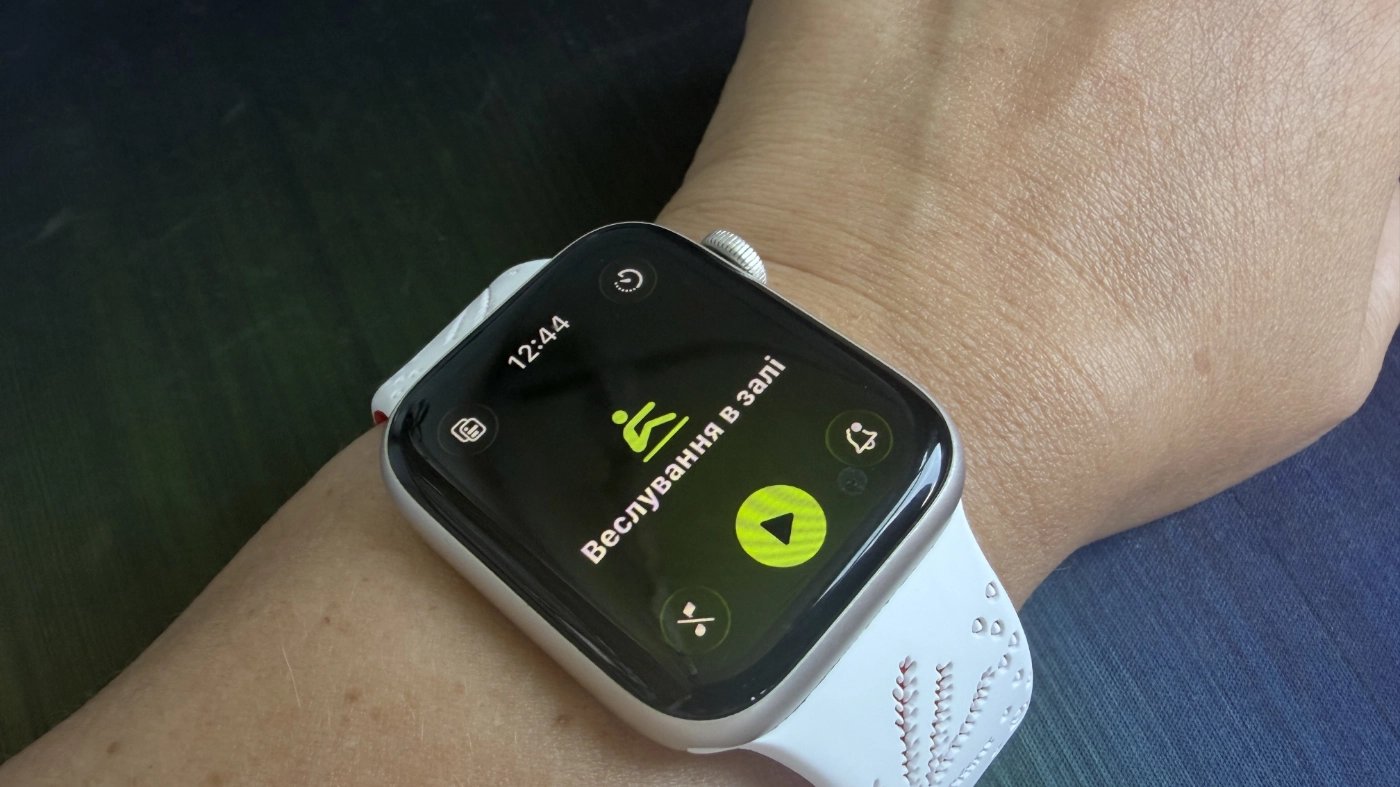
Proper Apple Watch setup turns your smartwatch into a precise personal trainer. Maximize workout efficiency, track custom metrics, and avoid injuries with five essential features.
How to Manually Adjust Heart Rate Zones on Apple Watch
By default, Apple Watch calculates your heart rate zones automatically. For more precise training, you can customize them based on your individual metrics:
- Open the Watch app on your iPhone.
- Scroll down and select Workout.
- At the bottom of the screen, tap Heart Rate Zones.
- Switch the mode from Automatic to Manual.
- Select the desired zone (e.g., Zone 1, Zone 2, etc.) and enter your custom heart rate limits (BPM).
To maximize your workout results—whether burning fat, building endurance, or improving strength—it is essential to keep your heart rate within the target range.
How to Set Up Heart Rate and Pace Alerts
Stay focused on your workout without constantly checking the screen by setting up alerts. The watch will notify you with a subtle haptic tap if you leave your target zone or drop below your pace goal:
- In the Workout app on your watch, tap the More options / Pencil icon next to your chosen workout type (e.g., Outdoor Run, Outdoor Cycle).
- Tap Alerts.
- Select Heart Rate or Pace and specify your target zone or boundaries.
💡 Tip: This combination works best for Zone 2 training (endurance cardio and fat burning)—the watch will immediately alert you if you accelerate too much.
Creating Custom Workouts
The Workout app allows you to build complex structured interval sessions (for example: 5 min warm-up → 8 rounds of 1 min sprint / 1 min rest → 5 min cool-down). The watch guides you through each phase using haptic taps and sound cues.
How to set up: Open the Workout app on your Apple Watch → tap the Pencil / Edit icon next to the desired workout type (e.g., Running or Cycling) → scroll to the bottom and select Create Workout → choose Custom. You can also build and manage these workouts directly on your iPhone for added convenience.
📌 Important: Which workouts support custom intervals?
Custom Workouts, pace alerts, and target heart rate alerts are available primarily for endurance/cyclical activities:
- Running (Outdoor and Treadmill)
- Cycling (Outdoor and Stationary)
- Swimming (Pool and Open Water)
- Walking and Hiking
- Elliptical and Rower
Note: General workouts such as “Mixed Cardio”, “Functional Strength Training”, “Yoga”, or “Pilates” do not support custom intervals—the watch only tracks total duration, heart rate, and calories.
Assessing Intensity with Training Load
Recent watchOS updates allow you to analyze not just active calories, but also how workouts impact your body long-term over 7-day and 28-day periods. You can rate the intensity of each session on a scale from 1 to 10 to help prevent overtraining or injury.
How to set up
Immediately after finishing a session, your Apple Watch displays a screen asking you to rate your Effort. Based on this rating, the Fitness app on your iPhone calculates your current Training Load and indicates whether you should rest or push for maximum performance.
Custom Metrics Views & Auto-Pause
If you run in urban areas and stop at traffic lights, average speed data can become distorted. Auto-Pause automatically pauses tracking when you stop moving. You can also customize the workout screen to display the metrics most important to you (such as stride length, vertical oscillation, or running power).
How to set up
- Auto-Pause: On your iPhone, open Watch → Workout → toggle on Auto-Pause.
- Custom Display Views: On your watch, open the Workout app → tap the Pencil / Edit icon next to the exercise → tap Workout Views → Edit Views.
Start/End Workout Reminders
If you forget to launch a workout, your watch detects the physical activity automatically and prompts you to record it (including the elapsed time). It provides a similar prompt to stop recording once you finish.
How to set up
On your iPhone, open the Watch app → Workout → toggle on Start Workout Reminder and End Workout Reminder.
Fall Detection During Workouts
If you take a hard fall during an activity (such as cycling or running), Apple Watch sounds an alarm and automatically contacts emergency services if you are unresponsive. Emergency contacts must be configured on your iPhone beforehand.
How to set up
On your iPhone, open the Watch app → Emergency SOS → Fall Detection → select Only during workouts or Always on.
Low Power Mode for Workouts
Low Power Mode disables the Always-On display and reduces the frequency of GPS and heart rate readings to preserve battery life during long runs, rides, or hikes.
How to set up
On your Apple Watch, go to Settings → Workout → enable Low Power Mode (or toggle it via Battery Settings in Control Center).
Більше новин в телеграмі