Ever taken a picture of a business card, a recipe, or a sign, only to end up retyping the whole thing by hand? You don’t have to. Every iPhone made in the last few years can pull text straight out of a photo and let you copy it like any other text on your screen. No app, no typing, no guessing.
Turn On the Feature That Makes This Possible
This trick relies on a built-in iPhone feature called Live Text. It’s been around since iOS 15, and on most iPhones it’s already switched on by default.
To check, or turn it on:
- Open Settings.
- Tap General, then Language & Region.
- Make sure Live Text is toggled on.
If it’s already green, you’re all set and can skip straight to the next part.
Copy Text From a Photo You Already Have
Say you snapped a photo of a Wi-Fi password taped to a router, or a paragraph from a book. Here’s how to grab that text:
- Open the Photos app.
- Find the picture with the text in it and open it.
- Look for a small icon that looks like three lines with a scan symbol in the bottom corner of the photo — this appears whenever Live Text detects readable text. Tap it, or simply tap and hold on the text itself.
- The text will highlight, just like text on a webpage.
- Drag the blue selection handles to grab exactly the part you need, or tap Select All.
- Tap Copy.
That’s it. You can now paste that text into a message, an email, a note, or any other app.
Skip Taking a Photo Entirely — Scan Text Live Through the Camera
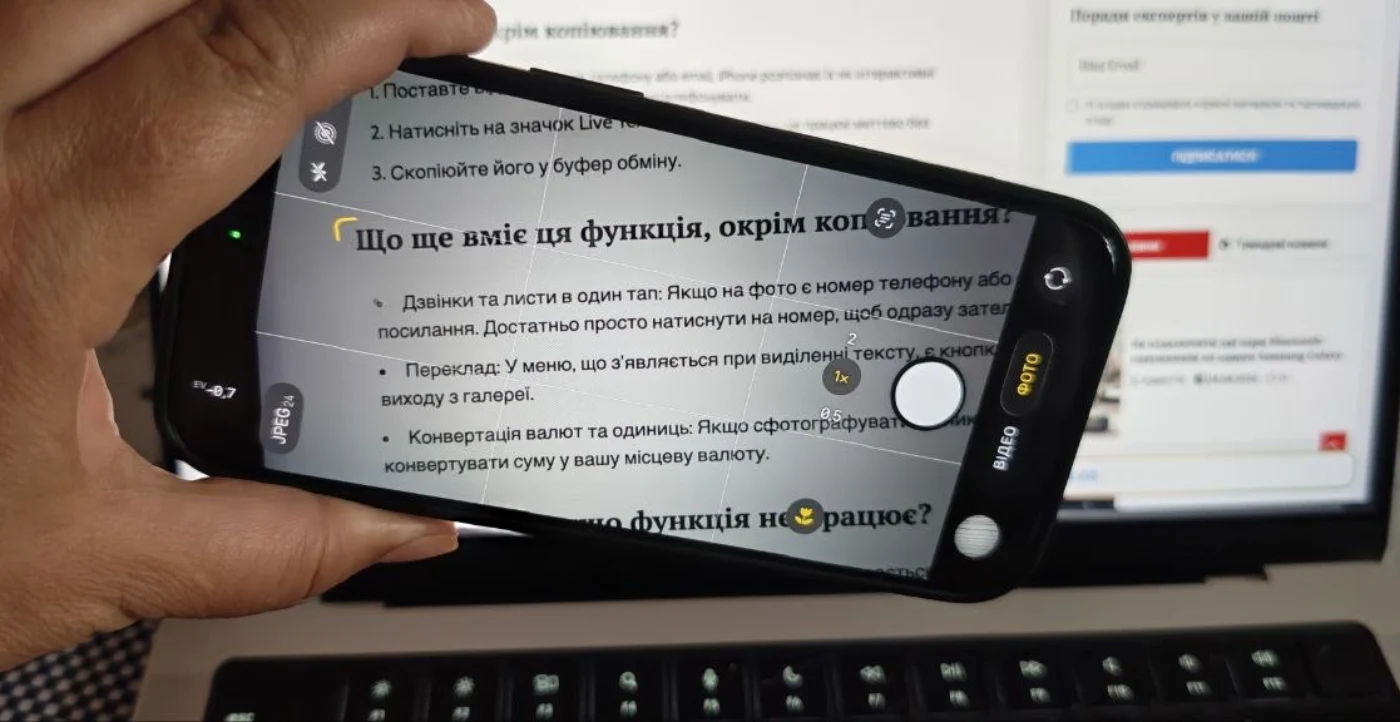
You don’t even need to take a picture first. The Camera app can grab text in real time.
- Open the Camera app.
- Point it at any text — a sign, a menu, a screen, a printed page.
- A yellow frame will highlight around the text automatically.
- Tap the yellow frame, then tap and hold to select the text, exactly like you would in Photos.
- Tap Copy.
This is the fastest option when you’re standing right in front of the text and don’t need to keep the photo itself.
It Also Works on Numbers, Links, and More
Live Text isn’t limited to plain paragraphs. It’s smart enough to recognize:
- phone numbers, which you can tap to call directly
- email addresses, which open straight into Mail
- website links, which open in Safari
- physical addresses, which open in Maps
- dates and events, which can be added to your calendar
So instead of copying and pasting a phone number from a photo into your Phone app, you can often just tap it and call right away.
A Few Things Worth Knowing
- Live Text works with most common languages, but recognition quality depends on how clear and well-lit the photo is. Blurry or tiny text is harder to grab accurately.
- This feature needs a reasonably recent iPhone — anything running iOS 15 or later supports it, which covers the vast majority of iPhones in use today.
- It works on photos already saved to your camera roll too, not just new ones, so old screenshots and pictures count as well.
The Bottom Line
Next time you’re staring at a photo full of text you need, don’t reach for the keyboard. Open the picture, tap and hold on the text, and copy it directly — or just point your Camera app at it and skip the photo step altogether. It takes seconds and saves you from retyping anything by hand.
Більше новин в телеграмі