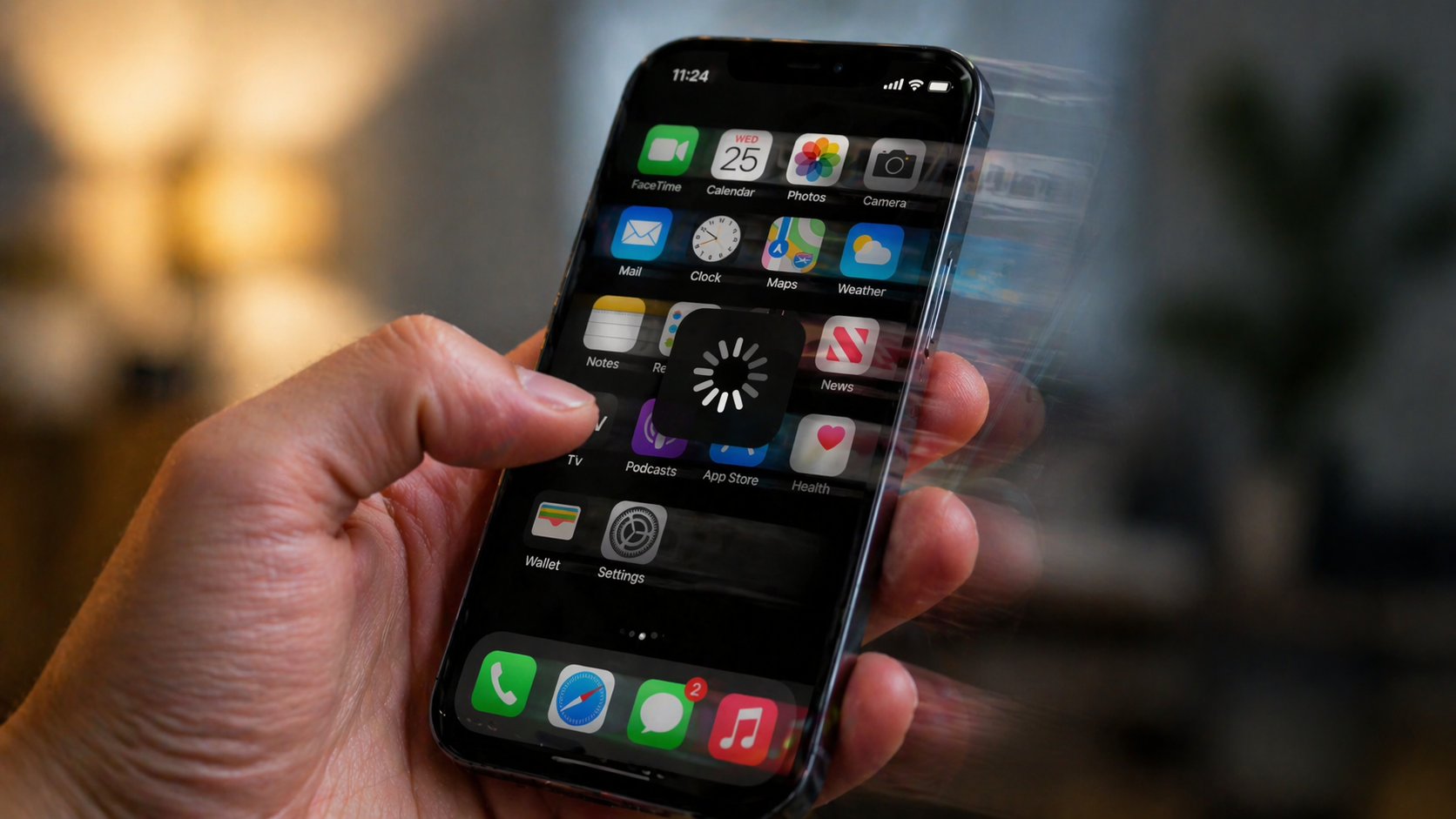
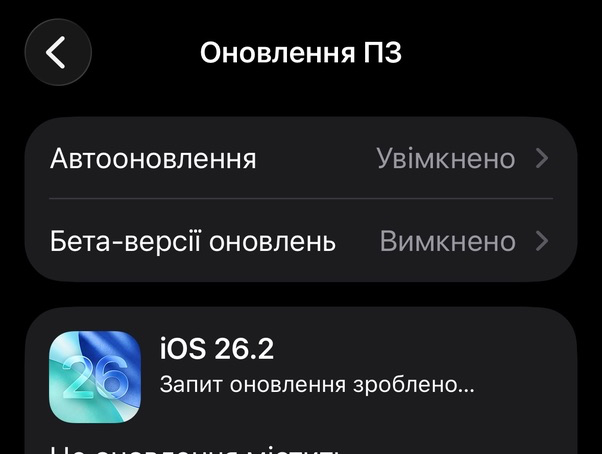
When an iPhone won’t update, the issue is usually not the device itself but the conditions under which iOS is trying to check for or install an update. Users may notice that the iOS update does not appear, the system takes a long time checking for updates, or the iPhone does not see the update at all even though it is already available. In most cases, this is caused by insufficient storage space, network settings, temporary Apple server issues, or the fact that a specific iPhone model no longer supports the latest version of iOS.
Why iPhone Won’t Update: Common Causes
When an iPhone does not update, it does not mean that iOS is “broken.” The update process stops because certain required conditions are not met. In most situations, the iPhone cannot find a new iOS version or does not start downloading it because one of Apple’s basic update requirements is missing.
Users often confuse cases where an update is not yet available for their device with situations where the iPhone cannot see the update due to settings or technical limitations. That is why it is important to distinguish between temporary issues, software restrictions, and real hardware-related limitations before taking further action.
- not enough free storage space to download and install iOS;
- unstable or restricted Wi-Fi connection;
- temporary Apple server outages or high server load;
- the iPhone model no longer supports the latest iOS version;
- an active iOS beta profile blocking the public release;
- system settings or Apple ID related errors.
In most cases, an iPhone does not update because of one of these reasons rather than a serious malfunction. Once the exact cause is identified, the issue can usually be resolved quickly without drastic measures. The next step is to check the settings that most often prevent iOS updates from appearing on an otherwise working device.
iPhone Can’t See an iOS Update: What to Check First
If an iPhone won’t update and the Software Update section says that the latest version is already installed, the issue often lies in basic system settings used by iOS to check for updates. In these cases, the update may be available, but the iPhone does not display it due to local restrictions or incorrect system parameters.
The most common scenario is when an iPhone cannot see an update after recent settings changes, data migration, or long periods without a restart. iOS is sensitive to minor system glitches, and even a small issue can prevent the update check from working properly.
- check that there is enough free storage space for the iOS update;
- make sure the iPhone is connected to a stable Wi-Fi network;
- check the battery level or connect the iPhone to a charger;
- restart the iPhone before checking for updates again;
- verify that date and time settings are correct;
- confirm that the Apple ID is working without restrictions.
In many cases, the iOS update appears immediately after these steps. This is a basic but essential stage that is often overlooked. If the iPhone still does not update, the issue may occur during the download or installation process itself.
iOS Update Won’t Install: Common Installation Issues
When an iPhone finds an iOS update but cannot install it, this situation differs from cases where the update does not appear at all. Here, the process has already started but stops at a certain stage, causing the update to fail or restart repeatedly.
Most installation errors happen after the update file is downloaded, when the iPhone tries to verify or prepare it for installation. At this point, any disruption—from unstable connectivity to an internal iOS error—can prevent the update from installing successfully.
- iPhone stuck on “Preparing Update”;
- error message saying the iOS update failed to install;
- iPhone restarts unexpectedly during installation;
- the update process stops without an error message;
- the system repeatedly asks to download the same update.
These issues rarely indicate serious hardware problems. In most cases, iOS fails to complete the update due to a temporary error or a corrupted update file. At this point, using manual update methods is often the most effective solution and does not require data loss.
How to Update iPhone Manually If Automatic Update Fails
If an iPhone does not update automatically due to settings or installation errors, a manual update can bypass most iOS limitations. This method uses Apple’s official tools and is recommended when the iPhone detects an update but cannot complete the process on its own.
Manual updating is especially helpful if the system shows errors, freezes during preparation, or repeatedly prompts the same update. When performed correctly, this method does not erase personal data.
- update iPhone using Finder on macOS or iTunes on Windows;
- connect the iPhone to a computer using a cable for a stable connection;
- check for updates through the device management section;
- download the iOS update again without relying on Wi-Fi;
- restart the iPhone before starting the process.
In most cases, manual updating allows iOS to install successfully even when standard methods fail. This is a safe and Apple-recommended approach for resolving system update issues. If the update still does not install, the cause is usually related to device compatibility or discontinued iOS support.
Which iPhone Models Support iOS 26.2
According to Apple’s official documentation, iOS 26 is supported on iPhone models starting from iPhone 11 and all newer generations. This means these devices are eligible for updates within the iOS 26 series, including iOS 26.2.
Supported models include:
- iPhone 11;
- iPhone 12;
- iPhone 13;
- iPhone 14;
- iPhone 15;
- iPhone 16;
- iPhone 17.
Additionally, iPhone SE (2nd generation) is supported.
If your iPhone is on this list but iOS 26.2 does not appear or fails to install, the issue is usually related to update conditions rather than device compatibility.
Data Safety
This article describes only standard iOS update methods provided by Apple: through iPhone settings, Finder on Mac, or iTunes on Windows. When choosing the “Update” option instead of “Restore,” these methods do not delete personal data, apps, or user settings. It is strongly recommended to have an up-to-date backup before installing any iOS update to avoid potential data loss in case of a system error.
Sources: This material is based on Apple’s official documentation regarding iOS updates and iPhone compatibility.
Більше новин в телеграмі