Speeding up an iPhone: 10 real ways to make it fast again
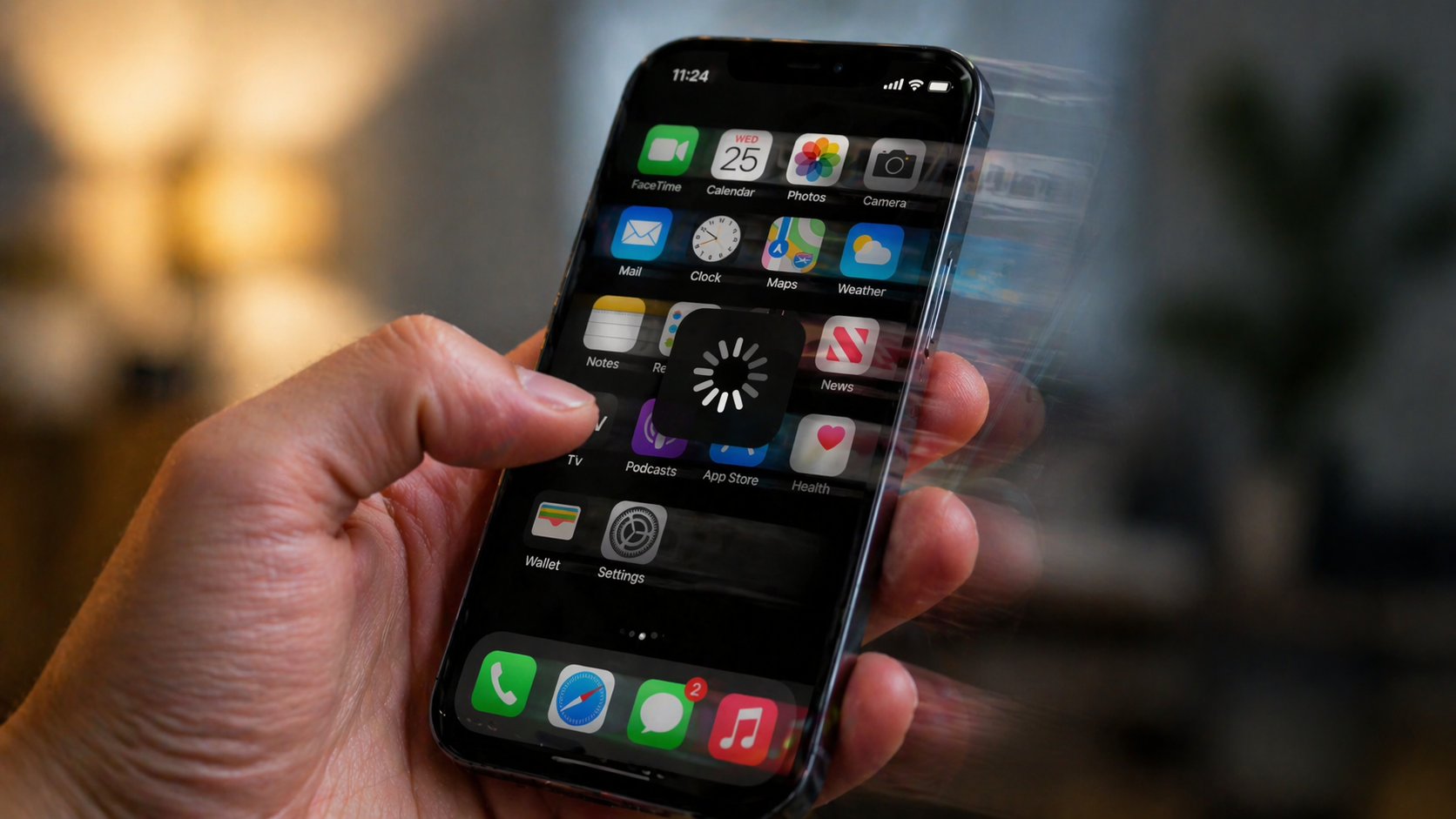
Speeding up an iPhone is not always about deleting photos. Often it’s a matter of optimizing background processes and maintaining proper operating system “hygiene”. Here are 10 effective tips that will help restore your device’s speed:
1. Clearing system cache (Force Restart)
A regular shutdown does not always clear temporary files. Perform a Force Restart: quickly press and release the volume up button, then the volume down button, and then hold the side button until the Apple logo appears. This resets “bugged” background processes.
2. Reviewing Background App Refresh
Many apps constantly load data in the background, consuming processor resources. This feature, while it seems useful, is often one of the biggest “silent” resource consumers. When it is active, your iPhone constantly keeps part of its RAM and processing power in standby mode to check whether something new has appeared in your apps. Path: Settings > General > Background App Refresh.
Tip: Disable it completely or leave it only for critically important messengers.
In addition to speed, this directly affects device temperature. When the processor is constantly activated by background tasks, it generates heat. A warm iPhone = a slow iPhone, because the system automatically reduces CPU frequency (throttling) to cool down. Disabling automatic background loading not only speeds up your smartphone but also saves battery.
3. Storage optimization (10% rule)
An iPhone starts to noticeably slow down when free space drops below 10–15% of total storage. The system cannot efficiently create temporary files for app operation. Delete Telegram cache (it often takes gigabytes) and old downloads in Apple TV or Netflix.
4. Disabling “heavy” animations
This point is often underestimated, seen only as a matter of visual style. In reality, animations in iOS are complex mathematical calculations performed by the GPU in real time. When you close an app or open a folder, the system calculates blur, scaling, and motion trajectory. If the device is not new, transparency and motion effects can heavily load the GPU.
Reduce Motion. By default, iOS uses a parallax effect and complex transitions between screens. When disabled, the system stops rendering intermediate animation frames. This is especially noticeable on devices where the GPU struggles with high frame rates. The interface starts to feel instant, because you are no longer waiting for animations to complete.
Enabling Reduce Transparency replaces blurred backgrounds with simple solid colors. GPU load drops significantly. Scrolling lists and opening notifications becomes much smoother, without micro-lags.
5. Clearing Safari history
Accumulated history, cookies, and cache in Safari eventually turn into “digital clutter” that slows the browser down. When you open Safari, the system tries to scan large history and cache databases. If they are too large, the browser starts to hesitate before loading each page.
Path: Settings > Safari > Clear History and Website Data. Tip: choose “All history” to remove everything, not just the last hour — this gives maximum speed improvement.
6. Managing location services
When dozens of apps try to determine your location at the same time, the system spends resources processing these requests. Switching them to “While Using” instead of “Always” allows the processor to rest when the app is not active. Constant GPS tracking drains both battery and system resources. Path: Settings > Privacy > Location Services.
Tip: Set most apps to “While Using” and disable unnecessary system services.
Active GPS usage generates heat. Since iPhone automatically reduces performance when overheating, unnecessary location activity directly leads to slowdowns.
7. Disabling automatic updates
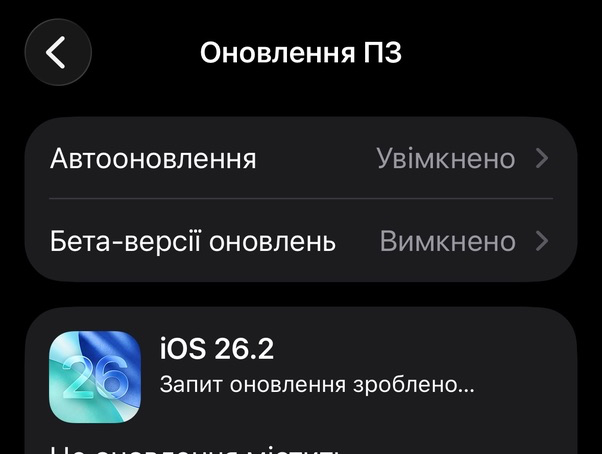
When the App Store starts updating multiple apps at once, the phone may freeze. This is one of the most resource-intensive operations.
Path: Settings > App Store > App Updates (disable). Update apps manually while charging.
This can also be one of the reasons why your iPhone overheats.
8. Checking battery health
If battery capacity drops below 80%, iOS may automatically reduce CPU performance to prevent unexpected shutdowns. Path: Settings > Battery > Battery Health. If “Performance Management” is enabled, this is a direct cause of slowdowns.
When an iPhone starts throttling. When the battery is worn out, it cannot deliver the required voltage under heavy load. To prevent sudden shutdowns, iOS intentionally reduces CPU clock speed. You see this as lag when opening the camera or heavy websites. After 80% capacity (or around 500 cycles), battery resistance increases. If you see a message that performance management has been applied, your iPhone is no longer running at full power. By the way, this is also something to check when buying a used smartphone.
9. Disabling unnecessary widgets
Widgets on the left screen constantly refresh. If you don’t use them, remove them — this frees up RAM.
10. Full reset (Hard Reset) — last resort
If your iPhone works poorly after a major iOS update (for example, from version 18 to 26), the best solution is to back up to iCloud, reset the device to factory settings, and restore your data. This removes system “junk” accumulated over time.
Більше новин в телеграмі