Local AI on Mac Bypassing Apple Intelligence: What You Need to Get Started
While Apple Intelligence remains a restricted English-only club with a staggered rollout in the EU, M-series Mac owners hold a massive advantage. Thanks to the unique Apple Silicon architecture and ultra-fast Unified Memory, Mac computers are arguably the best consumer machines in the world for running local Neural Networks.
You don’t have to wait until Apple officially rolls out full regional support or localized languages. A fully private, powerful ChatGPT alternative that flawlessly understands French, German, Spanish, and other European languages can be deployed on your Mac right now. Let’s break down how to do it and what hardware you actually need.
What Your Mac Needs: Hardware and Memory
The most critical resource for running local AI on a Mac is not the processor itself, but the amount of RAM (Unified Memory). Since the memory in M1, M2, M3, or M4 chips is shared between the CPU and the graphics core, the AI model loads entirely into this high-speed pool.
- 8 GB RAM (Base Macs): Good just for testing the waters. You will only be able to run small, heavily quantized models (around 1–3 billion parameters). They run fast but are prone to “hallucinations” and have a limited vocabulary in non-English languages.
- 16 GB – 24 GB RAM (The Sweet Spot): The optimal choice for comfortable daily work. This allows you to run robust models with 7–9 billion parameters. The AI responses will be fast, and text summarizing, translation, or copywriting will be top-tier quality.
- 36 GB RAM and more (For Power Users): Total freedom. You can deploy heavy models with 14–32 billion parameters, which match online versions of ChatGPT in terms of logical reasoning and complexity.
⚠️ Important Note: There is absolutely no point in trying to run local models on older Intel-based Macs. They will run so slowly that you will be waiting minutes for a single sentence to generate.
Top 3 Local AI Models with Excellent European Language Support
Not all open-source models handle European multilingual context well. We have selected the top three options available today that excel in translation, grammar, and reasoning across multiple languages.
1. Llama 3 / Llama 3.1 (by Meta) — 8B (8 Billion Parameters)
This is the absolute “gold standard” for any Mac with 16 GB of RAM. Meta invested billions into training this model, giving it a massive, rich multilingual dataset.
- Best for: Creative writing, advanced text summarization, switching tones and styles, and high-quality translations. It runs incredibly fast on M-series chips.
2. Gemma 2 (by Google) — 9B

A fresh model from Google that goes toe-to-toe with Llama across major benchmarks, and even outperforms it in certain creative and logical tasks.
- Best for: Structuring unstructured data, pulling key insights from messy meeting notes, and engaging in a very natural, human-like dialogue.
3. Qwen 2 / Qwen 2.5 (7B or 14B)

Despite its Chinese origin, this model lineup is widely considered one of the best in the world for cross-border language proficiency, including flawless performance in German, French, Spanish, Italian, and Eastern European languages.
- Best for: If you have 24 GB or 36 GB of RAM, the 14B version of Qwen is the best offline alternative to a paid ChatGPT subscription. It is highly intelligent, excellent at coding, and handles long conversational histories effortlessly.
Step-by-Step: How to Launch Offline AI on Your Mac in 5 Minutes
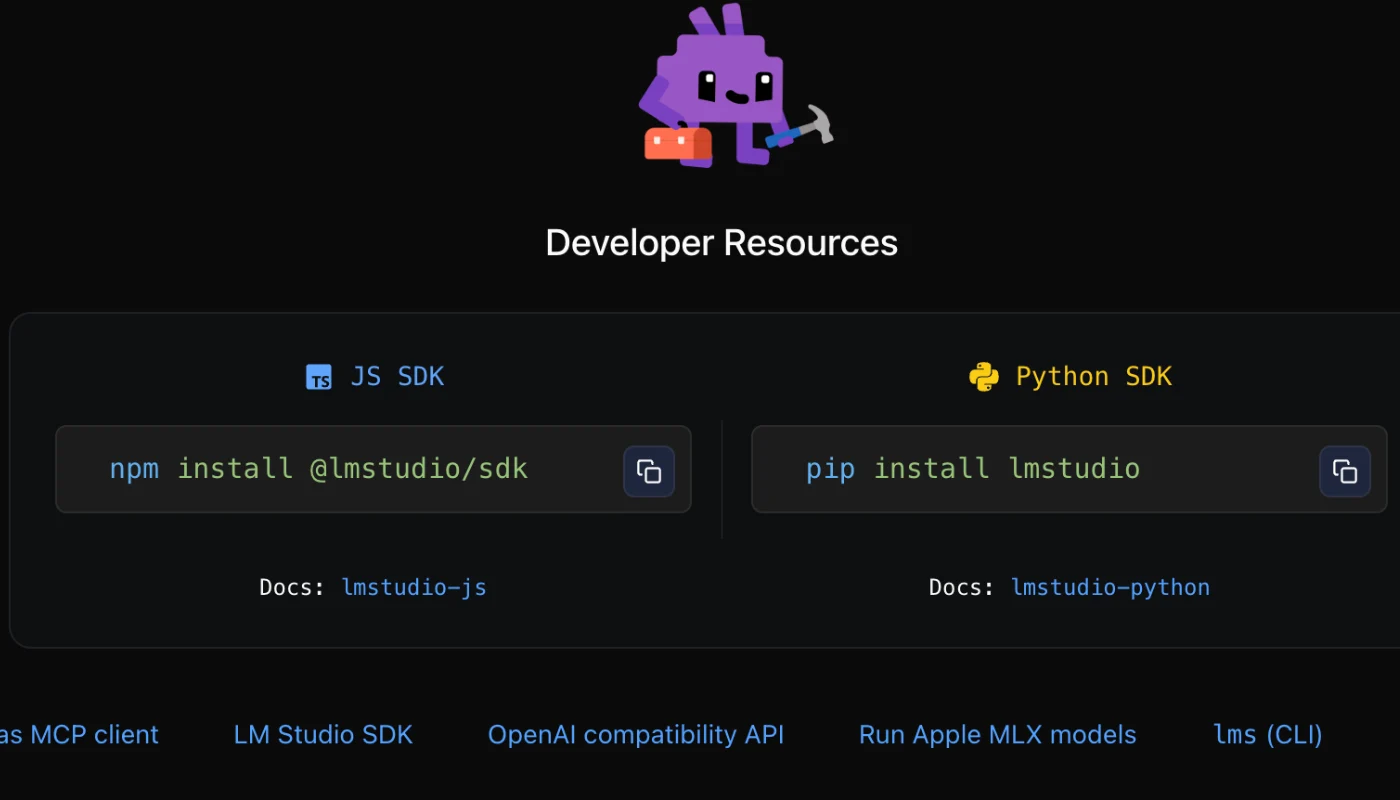
You don’t need to touch the Terminal or write a single line of code. Everything is done through user-friendly, free applications with a clean graphical interface.
Step 1: Download the Software
The simplest and most visually polished app for macOS is LM Studio (a great alternative is Ollama). Go to the official website lmstudio.ai, download the Apple Silicon version, and install it like any standard Mac application.
Step 2: Find and Download Your Model
Open LM Studio. In the search bar on the main screen, type in your model of choice, for example, Llama 3 8B. The app will display a list of available versions. Look for the green tags that say “Fits in RAM” — the software automatically detects your Mac’s specifications and highlights versions that will run smoothly. Click Download.
Step 3: Start the Chat
Navigate to the Chat tab (the speech bubble icon on the left panel), select your downloaded model from the dropdown menu at the top — and you are good to go. You now have a clean chat interface just like ChatGPT. You can drop your local work files here, ask it to write copy, or translate documents into multiple languages.
Why Local AI Beats Apple Intelligence
The biggest advantage of this approach is absolute digital independence. You choose exactly which “brain” powers your Mac today. When Meta or Google updates their open-source models, you can download them the very same day, without waiting for Apple to drop a new major macOS update months down the line.
Furthermore, this setup guarantees 100% data privacy, perfectly aligning with strict European data protection principles. You can take your Mac completely offline, unplug your internet connection, and your local AI will continue to process your prompts at maximum speed. Your sensitive texts, intellectual property, and personal data never touch a cloud server or a big tech corporation.
Due to a high volume of automated spam bots, we have temporarily disabled the comments section on our website. You can still share your thoughts and join the discussion in our official Telegram channel community.
Більше новин в телеграмі