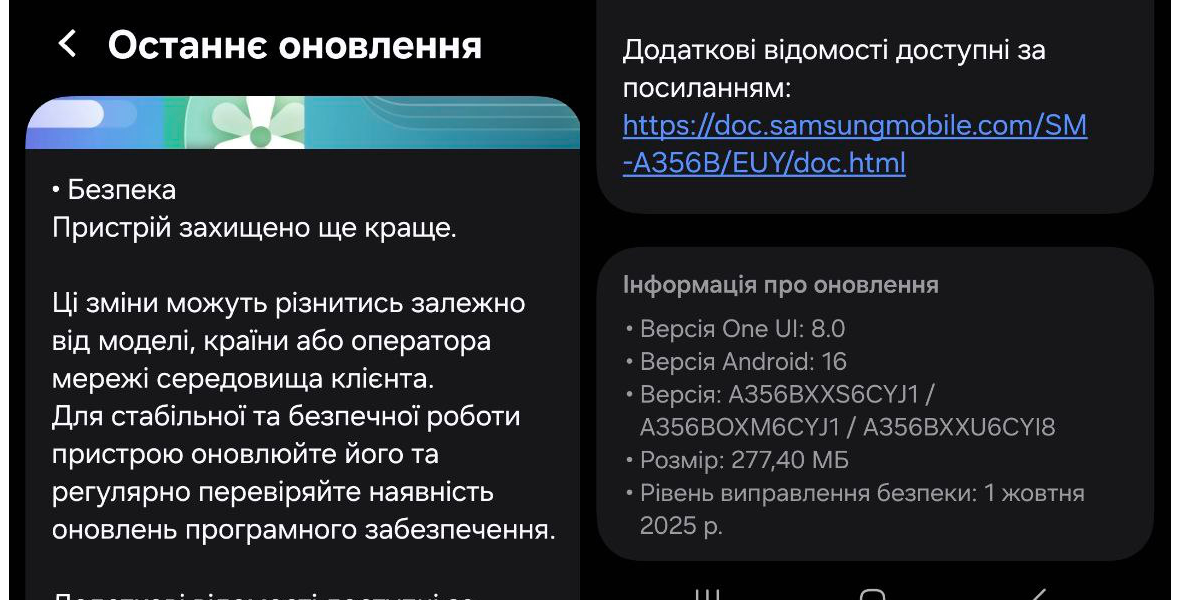
One UI 8, the 2025 update rolling out to Samsung smartphones and tablets alongside Android 16, is not about dramatic visual overhauls. Instead, the company focused on enhancing the user’s everyday experience: speed, gesture fluidity, more precise security tools, and updated camera capabilities. This approach noticeably improves the performance of both flagship and mid-range A-Series devices.
The update feels most comprehensive on the flagship Galaxy S24 line and the foldable Z Flip and Z Fold models. However, nearly all changes are also available on the Galaxy S23, A55, A35, and other current 2023–2024 models running Android 16. This broad accessibility is one of the key reasons why this update matters to a vast number of users.
The first significant change is the revamped gesture system. Samsung overhauled animations, boosted touch responsiveness, and eliminated the micro-delays that were sometimes felt in One UI 6.1. This makes switching between applications feel smoother, and the “back” gesture works more reliably on large screens, a notable improvement for the Tab S9 and Fold-series tablets.
Automation and ‘Modes and Routines’
The second major enhancement is the updated “Modes and Routines” feature. In One UI 8, Samsung redesigned the settings structure, making it easier for users to set up automation for work, exercise, or sleep. More conditions have been added for routines, including: device connection, battery level, network changes, or location. This is one of the universal features that works across all Android 16-compatible models, from the S-Series to the A-Class.
Specific attention was also given to the Security Dashboard. In One UI 8, the Security Dashboard presents information more clearly: permissions, background app activity, and microphone/camera usage. This simplifies privacy control and saves time for users who previously had to navigate multiple menu sections to find these settings.
Setting Up Conditions for Routines
Here is how the new condition-based routines work:
1. Device Connection To trigger a routine when connecting headphones, a watch, or a car system:
Open Settings.
Go to Modes and Routines.
Select Create Routine.
Tap Condition → Device connection.
Choose the type: Bluetooth, wired headphones, car system, or charging device.
Select the specific device from the list.
Add an Action: turn on music, change sound profile, open an application, or activate a specific mode.
Example: This is useful for automatically launching a navigation app when you connect to your car’s Bluetooth.
2. Battery Level For automatic actions when the charge drops:
Modes and Routines → Create Routine.
Condition → Battery Level.
Specify the percentage at which the routine should activate (e.g., 20%).
Add Actions: enable Power Saving mode, turn off 5G, decrease brightness, or close background apps.
This condition helps your smartphone maintain its charge longer without manual adjustments.
3. Network Change To make the phone react to Wi-Fi or mobile data:
Open Create Routine.
Condition → Network.
Choose an option: connection to a specific Wi-Fi network, Wi-Fi disconnection, switch to mobile data, or weak signal.
Add Actions: enable VPN, restrict data transfer, disable auto-updates, or activate a work mode.
This is convenient if you use different profiles at home and at work.
4. Location A routine that starts when you arrive at a certain place:
Create Routine → Condition.
Select Location.
Set a marker on the map—Home, Work, Gym, or any specific spot.
Specify the activation radius (e.g., 100 meters).
Add Actions: turn on Wi-Fi, change sound, launch a playlist, or enable a Focus mode.
This is one of the most precise conditions that genuinely saves time in everyday situations.
A New Approach to Security and Photography
Noticeable improvements have also been made to photo and video processing. While flagships gain expanded AI-editing tools, most models benefit from basic photo editor enhancements: more accurate object selection, faster removal of unwanted elements, and better frame alignment. The camera also received optimized night processing—the same feature from 6.1, but now more stable in mixed lighting conditions.
One UI 8 also enhances system smoothness. Mid-range smartphones, like the Galaxy A35 and A55, show noticeably less delay when opening large applications. RAM management has been improved, and background optimization works without the aggressive restrictions that sometimes interfered with essential processes in the past.
For large-screen models—the Fold, Flip, and Tab S9—Samsung updated the multi-window mode. Switching between apps is quicker, and windows snap to the screen layout more effectively. While not a radical change, it makes multitasking much more comfortable, especially when juggling a video, notes, and a browser simultaneously.
Another universal update is the expanded system prompts for gestures and action indicators, which make the smartphone easier to use for people who haven’t changed their settings in years. Also, the system itself now launches faster after a restart, which is particularly noticeable on A-Series devices.
Ultimately, One UI 8 doesn’t feel like an update designed to showcase a few huge features. It is a practical update that makes the interface faster and everyday actions simpler. Most of the changes are effective across various smartphones, regardless of whether they are a flagship or a mid-range model—and for this reason, the update is being considered one of Samsung’s most stable in recent years.
Більше новин в телеграмі