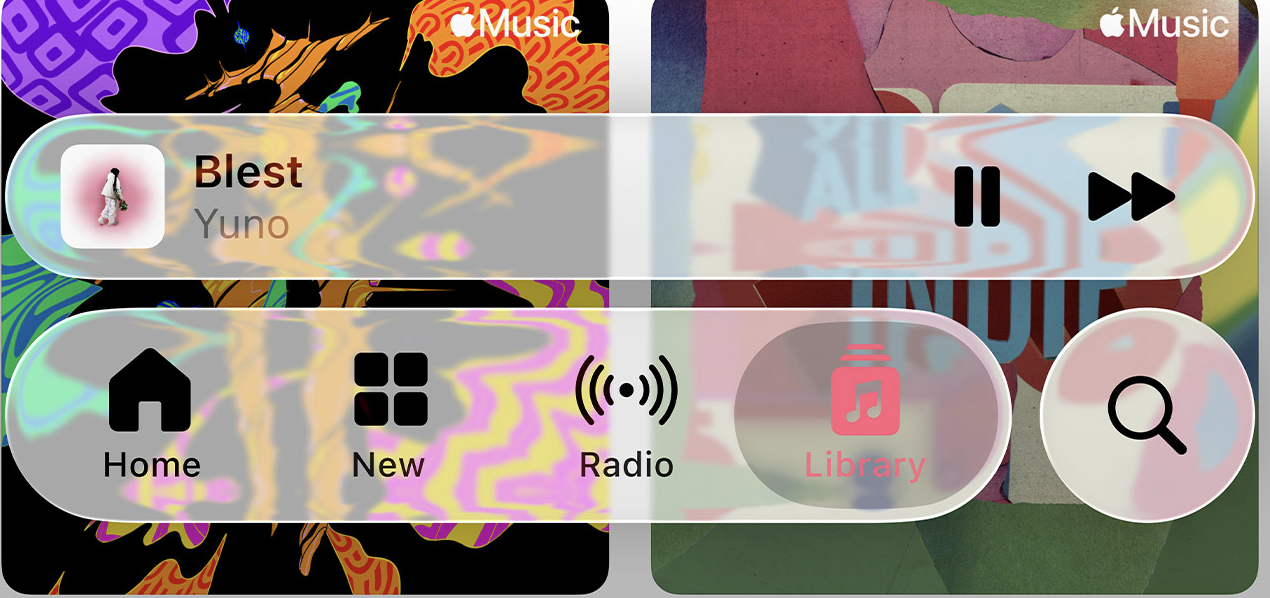
Liquid Glass is one of those features you turn on just to see how different iOS suddenly feels.
It doesn’t look like “another animation.” It looks like a brand-new design language: soft layers, depth, blurred edges, smooth transitions where the background melts underneath the interface.
It makes the iPhone feel… alive.
Every swipe, every menu, every gesture looks like it’s floating under a sheet of frosted glass.
Many users — myself included — genuinely love how the Control Center, menus, and basic navigation look with Liquid Glass enabled. Apple hasn’t refreshed its visual style this dramatically in years, and this effect finally feels like forward movement.
But there’s a part tech reviews rarely say out loud:
Liquid Glass is not ideal for everyone.
When the beauty becomes a problem
For some people, this new effect doesn’t enhance usability — it complicates it.
The semi-transparent background can make small text harder to read, especially in bright light or against light wallpapers. Eyes have to work a little harder to focus. Some users get tired of the “floating blur,” which shifts and moves with every gesture. Others are more sensitive to visual motion and find the layered depth distracting rather than calming.
And many people simply use their phones for hours every day — and any extra visual layer adds strain over time.
For these users, Liquid Glass isn’t a “wow moment.”
It’s too soft, too transparent, too visually busy.
Nothing unusual about that — an interface should be comfortable first, beautiful second.
Why the battery starts draining faster
Liquid Glass looks lightweight, but behind the scenes it does quite a bit of work.
It’s not a static layer — the blur is recalculated constantly.
Every time you open a menu, scroll through a feed, or switch between apps, the phone redraws the effect. That puts steady pressure on the GPU. On 120 Hz models — like the iPhone 15 Pro, 16 Pro, or 17 Pro — this load is even higher because the system renders more frames per second.
The result: the battery drains faster and the phone may occasionally feel warm.
In short, Liquid Glass is always running in the background. If you’re an active user, you’ll feel the impact sooner than you expect.
Why some people notice the issue and others don’t
It mostly depends on two things: your iPhone model and the way you use it.
On newer models, Liquid Glass is rendered in higher quality — and that naturally requires more power. On older devices, iOS simplifies the effect, so users notice fewer issues.
Your habits matter too.
If you rarely open menus or switch apps, the effect won’t drain much.
But if your day is full of constant swiping, notifications, and app switching, Liquid Glass stays active almost all the time. The phone doesn’t get a break, and the battery drains accordingly.
Turning off Liquid Glass is not “ruining the look”
Some people worry that disabling transparency or motion effects will make the phone look flat or dated. It won’t.
The interface stays the same — just without some of the heavier visual layers.
And turning it off doesn’t limit iOS features in any way.
Your phone works exactly the same, only the UI becomes sharper, clearer, and easier on the eyes. This is especially noticeable in low light or when reading a lot of text.
If your iPhone suddenly lasts longer, stays cooler, and feels more responsive — then you made the right choice for your own daily use.
Should you turn off Liquid Glass?
Only you can decide what matters more — looks or comfort.
Here’s the general rule: if you read a lot on your iPhone, if the battery drains faster than usual, if your eyes get tired from the blur, or if the phone warms up in social apps or Safari, then reducing or disabling Liquid Glass can make a noticeable difference.
But if you love the new look and your battery life is fine — there’s no reason to turn it off. Apple designed the effect for people who want a more expressive and modern UI, not an obligation for everyone.
How to turn off Liquid Glass (simple steps)
There’s no single switch labeled “Liquid Glass,” but these settings effectively remove or reduce the effect.
1. Reduce Transparency (the main fix)
Settings → Accessibility → Display & Text Size → Reduce Transparency

This makes menus more solid and removes most of the blur.
2. Reduce Motion
Settings → Accessibility → Motion → Reduce Motion
Fewer heavy animations = less GPU activity.
3. Low Power Mode
Settings → Battery → Low Power Mode
iOS automatically reduces some visual effects, including Liquid Glass.
4. Limit the areas where Liquid Glass appears
Use static wallpapers, remove extra Lock Screen widgets, disable Perspective Zoom, avoid transparent widgets on the Home Screen.
Liquid Glass is most demanding when transparency + blur + motion appear together.
Reduce those, and the effect becomes lighter — and the battery lasts longer.
Final thoughts
Liquid Glass is one of Apple’s boldest visual shifts in years. It adds depth, softness, and a new sense of personality to iOS. But design should work together with comfort — not against it. If the effect makes text harder to read, strains your eyes, or shortens your battery life, then adjusting these settings simply makes sense. Modern iOS is built around choice: you decide the balance between style and usability. If Liquid Glass inspires you, keep it on. If you prefer clarity, stability, and longer battery life, your iPhone can give you that too. The best look is the one that works for you.
Більше новин в телеграмі