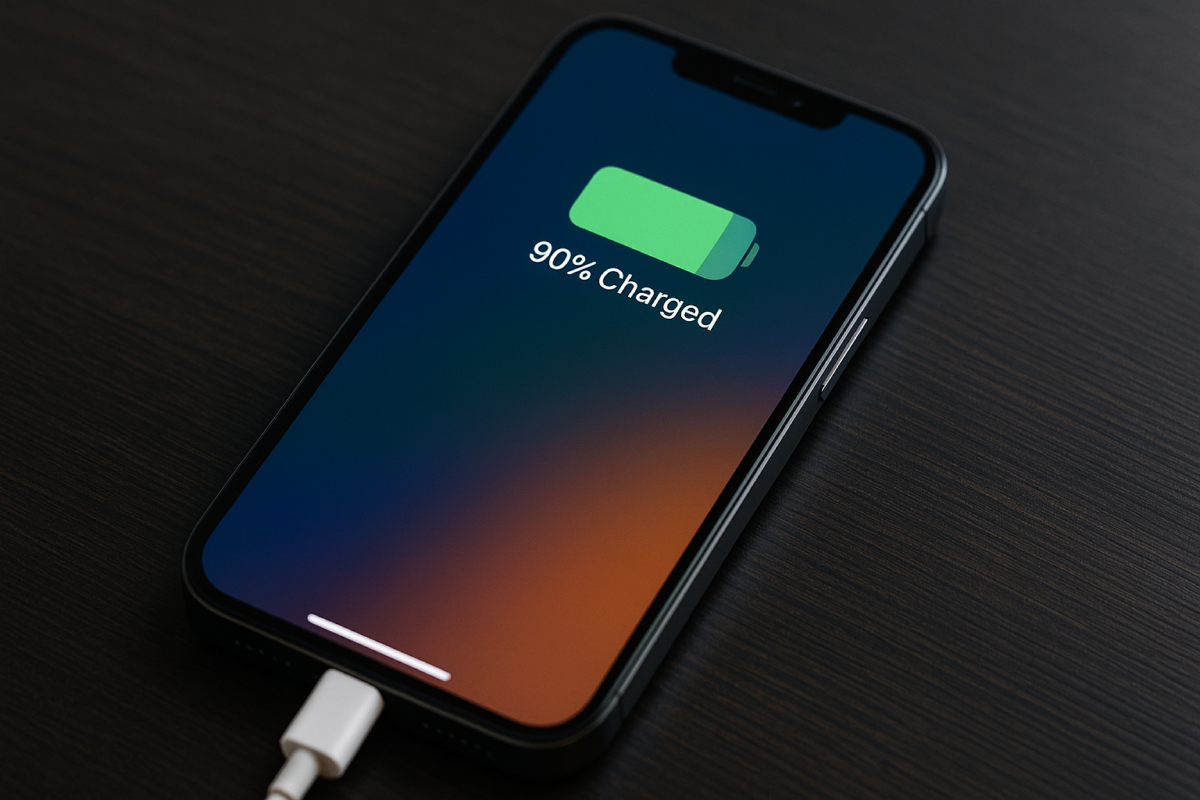
If your iPhone running iOS 26 drains faster than expected, you’re not imagining it. High-refresh displays, Apple Intelligence features, 5G, Lock Screen widgets, and Live Activities can noticeably increase power consumption. The good news: you can extend battery life without turning off essential features or breaking banking and security apps.
This guide includes only real features available today, based on iOS 26 settings and Apple’s official documentation. No myths, no hidden toggles.
1. Use Power Modes Correctly
Adaptive Power (available only on newer iPhones)
Supported on:
- iPhone 15 Pro / 15 Pro Max
- iPhone 16 / 16 Pro series
- iPhone 17 series
- iPhone Air
Location: Settings → Battery → Power Mode
Adaptive Power uses on-device intelligence to extend battery life by adjusting performance and background activity throughout the day. On supported models, it may also automatically enable Low Power Mode when the battery reaches 20%.
If your iPhone supports Adaptive Power, enable it and keep it on.
Low Power Mode (available on all models)
Location: Settings → Battery
Low Power Mode reduces background activity, disables some visual effects, limits 120 Hz refresh rate on ProMotion models, and slows down Mail fetch. Use it when your battery is below 30% or when you know you won’t have access to a charger.
2. Optimize Display Settings — the #1 Battery Drain
The display is consistently the biggest energy consumer on iPhone.
Enable Auto-Brightness
Settings → Accessibility → Display & Text Size → Auto-Brightness

This prevents the screen from staying unnecessarily bright indoors or at night.
Reduce Auto-Lock time
Settings → Display & Brightness → Auto-Lock → 30 seconds or 1 minute

Shorter screen-on time equals longer battery life.

Adjust Always-On Display (AOD)
Available on:
- iPhone 14 Pro / 14 Pro Max
- iPhone 15 Pro series
- iPhone 16 Pro series
- iPhone 17 Pro series
Options:
- Turn it off entirely, or
- Use a simple, bright static wallpaper with fewer complications.
A complex Always-On wallpaper + multiple Live Activities can drain several extra percent across a day.
Reduce transparency and blur (Liquid Glass load)
Settings → Accessibility → Display & Text Size → Reduce Transparency
Reduces GPU load and can slightly improve battery life on older models.
3. Manage Background Activity — Don’t Force-Close Apps
Force-closing apps does NOT save battery.
iOS suspends apps intelligently; reopening them from scratch often uses more energy.
Background App Refresh
Settings → General → Background App Refresh
Set to:
• Wi-Fi only, or
• Disable for non-critical apps (social media, shopping apps, secondary mess
Remove heavy widgets
Widgets that refresh frequently (Weather, Stocks, some news widgets) can noticeably increase background activity.
Keep only the widgets you actively use.
Limit Live Activities
Live Activities constantly update on the Lock Screen and can be a significant background drain.
Turn off Live Activities for apps that don’t require real-time updates.
Settings → Face ID & Passcode → Allow Live Activities
Disable them for:
- sports apps;
- food delivery apps you don’t monitor in real-time;
- shopping and promo apps.
Keep them only for;
- navigation;
- ride-sharing;
- active deliveries you are currently tracking.
Reduce notifications
Every notification wakes the screen and uses radio power.
Disable notifications for anything non-essential.
Settings → Notifications → Individual apps
4. Use Location Services Safely (Don’t Break Banking Apps)
Location Services are energy-intensive, but cannot be disabled globally if you rely on:
- banking apps;
- Apple Pay;
- two-factor authentication tied to location;
- Uber/Lyft;
- delivery tracking;
- maps and navigation.
- Global disabling can cause failed payments, fraud alerts, and login issues.
How to optimize location without breaking apps
Settings → Privacy & Security → Location Services
For essential apps (keep “While Using” or “Always”):
- banking & finance apps;
- Apple Pay–related apps;
- navigation (Maps, Google Maps, Waze);
- ride-sharing (Uber, Lyft);
- food delivery;
- airline apps.
For non-essential apps (set to “While Using” or “Never”):
- social networks;
- shopping apps;
- note-taking apps;
- photo editing apps;
- games.
Precise Location
Turn off Precise Location only for apps that don’t require exact coordinates.
5. Improve Charging Habits Using Apple’s Built-In Tools
Optimized Battery Charging (all supported iPhones)
Settings → Battery → Charging → Optimized Battery Charging
This feature reduces the time your iPhone spends at 100% by holding the charge at around 80% until it predicts you will unplug.
Charging Limit (available only on iPhone 15 and newer)
Settings → Battery → Charging → Charging Limit
You can choose:
• 80% limit
• 85% limit
• 90% limit
• 100% when needed
This setting helps reduce long-term battery aging.
For daily use, many users choose 80% or 85%; for travel days, you can temporarily allow charging to 100%.
Avoid charging in hot environments
High temperature accelerates battery wear.
Avoid:
• car dashboards
• direct sun
• charging under a blanket or pillow
6. Check Battery Usage — Find the Real Drainers
iOS 26 includes a detailed battery analytics screen.
Settings → Battery
Check:
• Last 24 hours
• Last 10 days
Look for apps with:
• high “Background Activity”
• unusually high consumption compared to your usage
• constant location use
• excessive notifications
• Live Activities stuck in the background
• “Siri,” “Home & Lock Screen,” or “Widgets” showing unexpectedly high drain
If one app is always at the top:
• turn off Background App Refresh
• turn off notifications
• turn off Live Activities
• reinstall the app
• log out and log in again
• if nothing helps — replace it with an alternative
7. After Updating to iOS 26: Expect Temporary Drain
After a major update, iOS performs background indexing and optimization.
During this time, battery life may drop temporarily — this is normal.
Apple recommends:
• wait 24–72 hours after updating
• keep the phone on Wi-Fi and charging overnight
• avoid heavy gaming or 4K video recording immediately after the update
If the battery still drains abnormally after 5–7 days, then check widgets, Live Activities, background app refresh, and battery usage analytics.
8. Quick Summary: What Works (and What to Avoid)
Safe and effective battery-saving steps
• Enable Adaptive Power (only on supported models)
• Use Low Power Mode when needed
• Turn on Auto-Brightness
• Shorten Auto-Lock
• Reduce Transparency to lighten GPU load
• Limit heavy widgets
• Disable unnecessary Live Activities
• Reduce notifications
• Set Background App Refresh to Wi-Fi or off for selected apps
• Use Optimized Battery Charging
• Use Charging Limit (iPhone 15 and newer)
• Check battery analytics for problem apps
Do NOT do this
• Do NOT force-close apps — iOS handles them better in the background
• Do NOT disable Location Services globally — this breaks banking, Apple Pay, Uber/Lyft, delivery, travel apps
• Do NOT charge your iPhone in hot environments
• Do NOT expect immediate battery improvement right after an update
Final Thoughts
You don’t need to disable core features or turn your iPhone into a minimal device.
Instead, focus on:
• display settings;
• background activity;
• location permissions;
• widgets and Live Activities;
• built-in charging tools;
• realistic expectations after updates/
These steps reflect how Apple intends iOS 26 to be used, and they deliver real, measurable battery improvements on every supported iPhone in 2025.
Більше новин в телеграмі