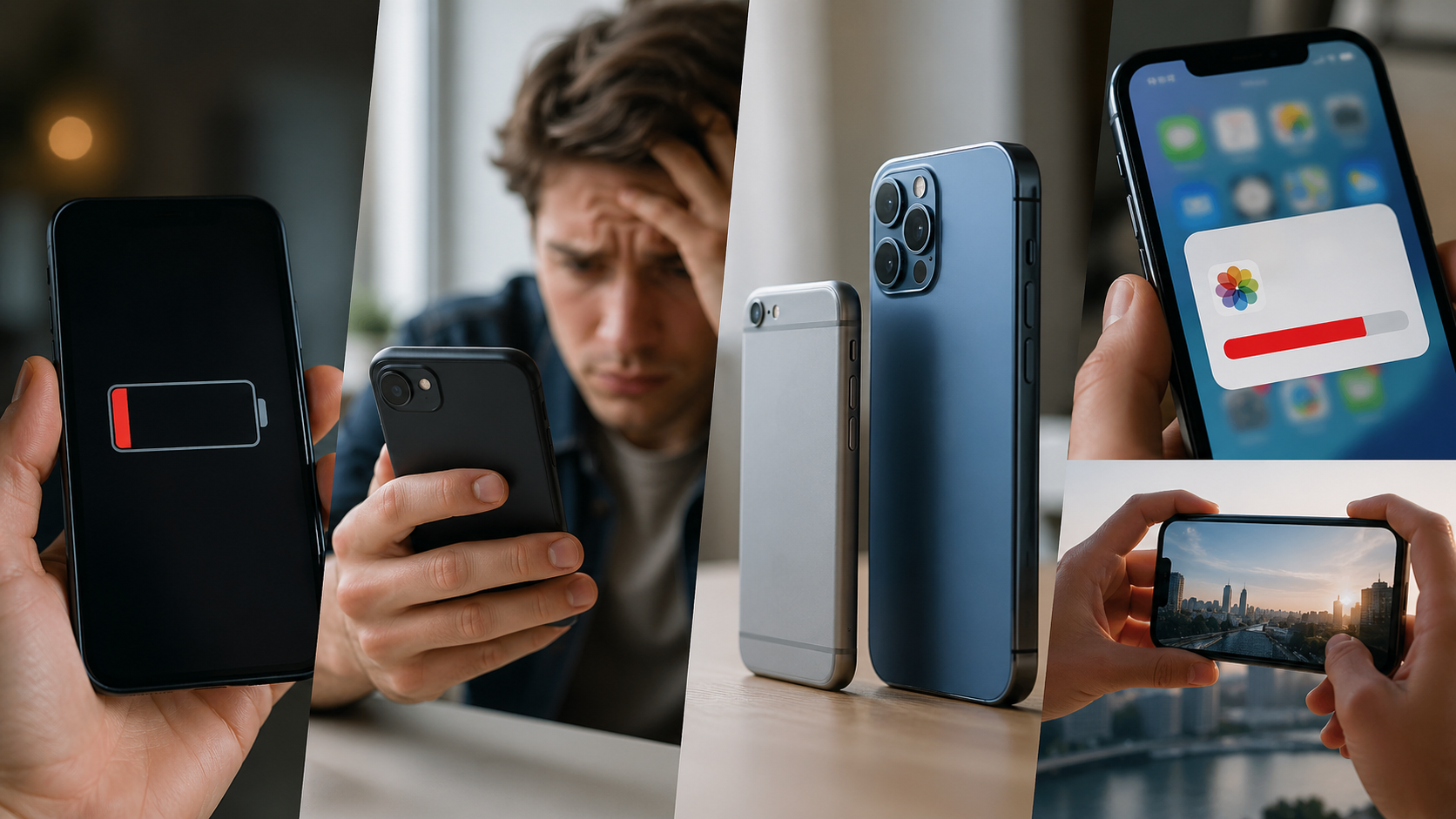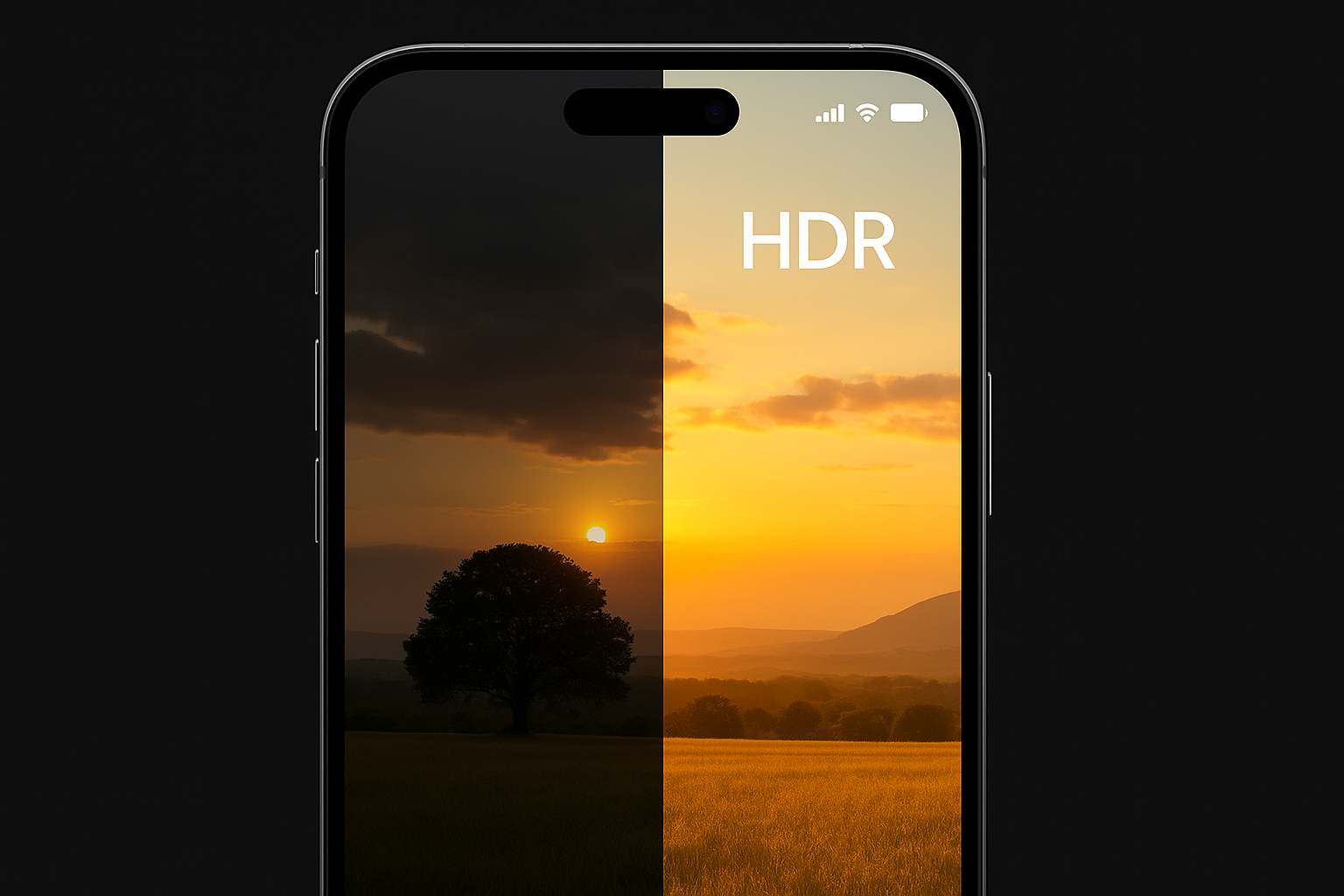
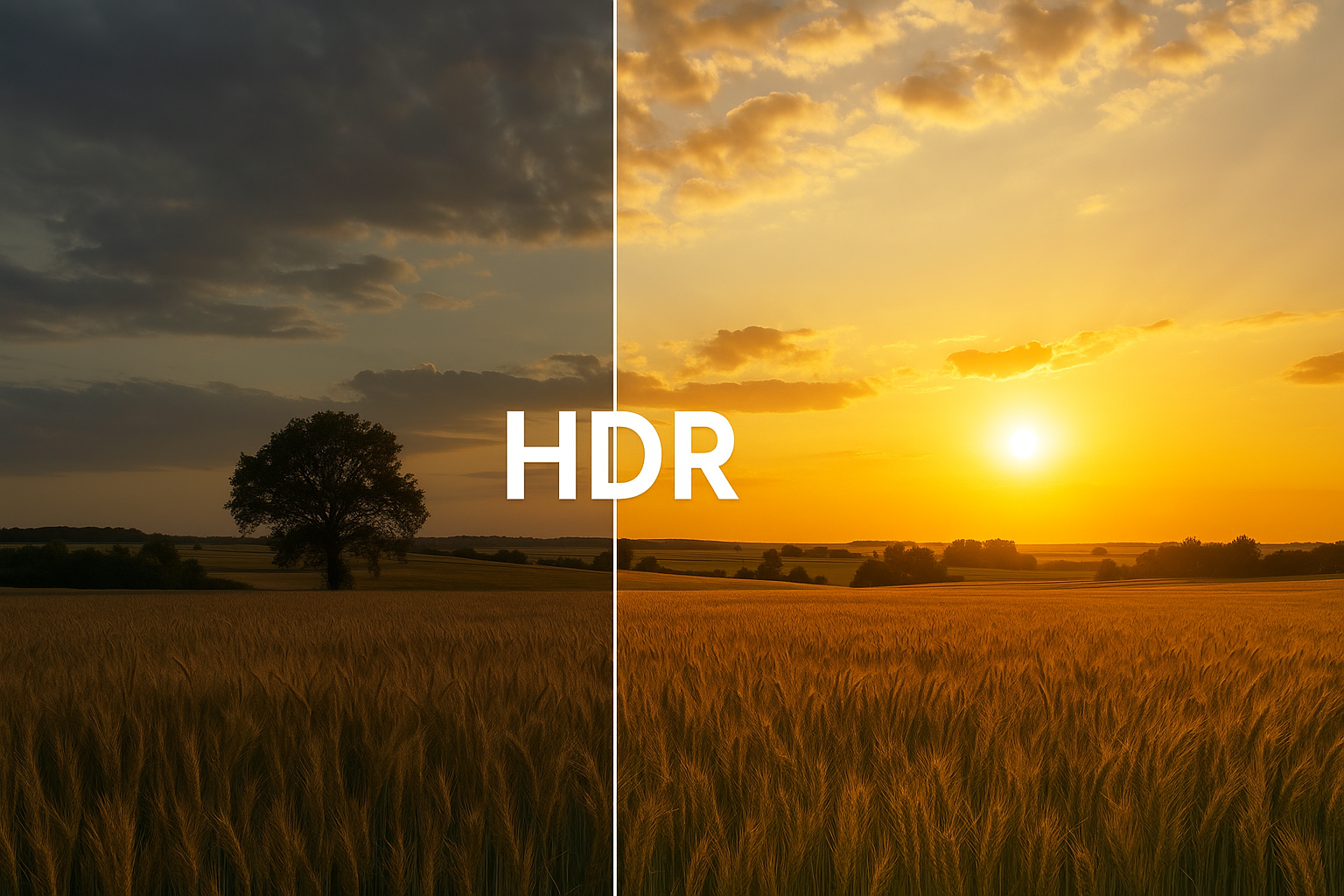
Many iPhone users notice a strange pattern: a photo looks bright and contrasty on the phone, but after export it suddenly becomes darker, flatter, or dull. In most cases, the reason is HDR. This is not a camera bug — this is how Apple’s image processing pipeline works. Understanding HDR helps avoid disappointing shots and produce consistently good results, even in difficult lighting.
How HDR works on iPhone
HDR (High Dynamic Range) combines several images taken at different exposure levels. Dark areas keep detail, bright areas avoid blown-out highlights. Smart HDR uses a mix of Deep Fusion, local contrast adjustments, noise reduction, and machine learning to balance the frame.
It works great in soft light, but struggles in harsh or mixed conditions.
Why iPhone photos often look darker
1. Lower exposure in direct sunlight
Smart HDR tries to preserve the sky and pulls down exposure to prevent highlight clipping. As a result, faces and important objects can appear darker.
This is more noticeable on iPhone 12–14 models.
2. The difference between iPhone display and standard screens
iPhone shows photos with tone-mapping — extra brightness and contrast. When you move the same file to a computer or Android device, the HDR information is lost, and the photo looks darker and flatter.
This is expected behavior, not a problem with the camera.
3. Local contrast adjustments
Smart HDR sometimes pushes shadow contrast too aggressively. Skin, hair, and dark clothes appear deeper or underexposed, making the whole image feel heavier.
Why photos degrade after uploading to social networks
Instagram, Facebook, Telegram and other platforms convert HDR images to SDR, which reduces:
- brightness;
- contrast;
- tone-mapping.
The result is a duller, darker photo that looks worse than on your iPhone.
When you should turn off HDR
1. Portraits in sunlight
Faces often become darker because HDR focuses on the sky.
2. Photos for social media
HDR photos almost always look worse after compression.
3. Night scenes with bright lights
Smart HDR tries to “save” light sources and makes the rest of the scene unnatural.
4. When you want predictable exposure
SDR provides stable, natural-looking results.
When HDR is helpful
- landscapes
- architecture
- diffused or foggy light
- backlit scenes where highlights matter
How to turn off HDR on iPhone (Smart HDR)
- Open Settings.
- Go to Camera.
- Turn off Smart HDR.
- For video — turn off HDR Video (10-bit).
How to shoot without HDR and get great images
- Tap the face to lock exposure.
- Swipe up or down to adjust brightness.
- Avoid heavy backlight without compensation.
- Check how the image looks in shade and sunlight.
- Use soft side lighting for portraits.
Більше новин в телеграмі