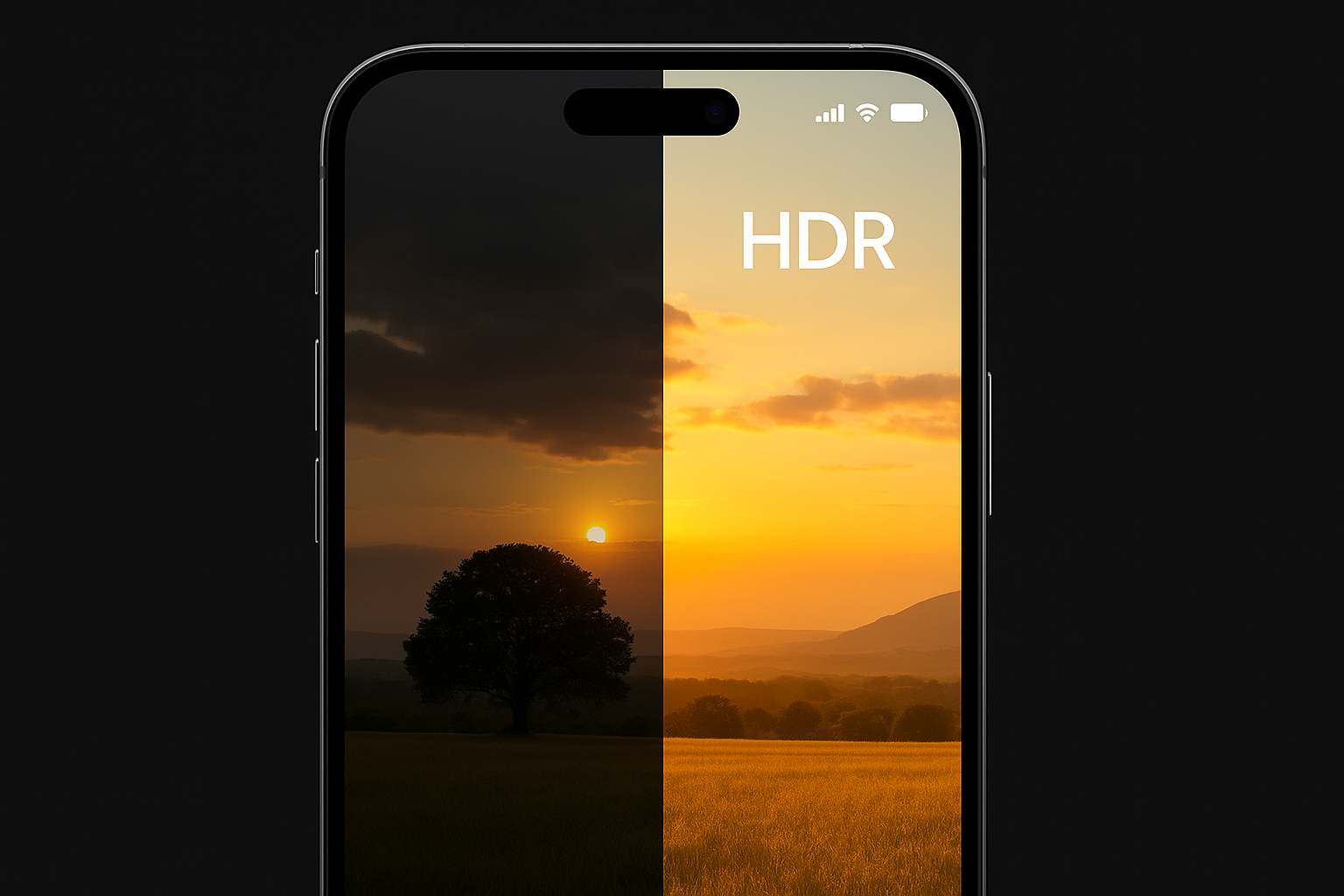
HDR has become a default feature on modern smartphones, but it doesn’t always produce the results users expect. Many people notice the same issue: photos look darker than they should, skin tones lose detail, and videos appear washed out after being uploaded to Instagram, TikTok, or YouTube. The reason is simple — HDR works differently across brands and screens, and not every device is able to display it correctly.
On the iPhone, HDR is tied to Smart HDR and Apple’s Photonic Engine. Samsung uses a more aggressive tone-mapping system. Xiaomi combines HDR with AI processing, which can boost contrast and saturation. If you prefer a consistent, predictable look — especially for social media — disabling HDR can make a noticeable difference.
This guide explains how HDR works in real-world conditions, why photos appear darker on some devices, and how to turn off HDR on iPhone, Samsung, and Xiaomi step-by-step.
Why HDR Can Make Photos or Videos Look Worse
HDR (High Dynamic Range) blends multiple exposures to preserve details in shadows and highlights. In theory, this should give you the best possible balance. In reality, it often creates problems — especially if you don’t view the image on an HDR-capable display.
1. Dark photos on iPhone
Smart HDR tries to protect bright areas like skies. When the background is extremely bright, it lowers exposure — which often makes your face or subject look darker. This effect becomes more visible when exporting or viewing images on non-HDR displays such as Windows laptops, older monitors, or Android phones.
2. Harsh contrast on Samsung
Samsung HDR typically pushes shadows aggressively. This can cause:
• over-sharpened skin
• unnatural color transitions
• noise in low light
• crushed blacks
On social media, this sometimes appears even worse after compression.
3. “Over-processed” photos on Xiaomi
Xiaomi often combines HDR with AI scene enhancement. This boosts contrast and saturation, making images look vibrant — but not always natural.
4. HDR video looks dull after upload
Instagram, TikTok, Facebook, and even some YouTube devices do not play HDR consistently.
When you upload HDR, these platforms convert it to SDR, causing:
• lower brightness
• muted colors
• flat skin tones
• washed-out backgrounds
If you create content for social media, shooting SDR is often the better option.
How to Turn Off HDR on iPhone
HDR on iPhone has two components:
• Smart HDR — for photos
• HDR Video (10-bit) — for videos
But starting with iPhone 14 Pro and the entire iPhone 15 lineup, Apple removed the Smart HDR toggle. It cannot be fully turned off.
Why you can’t disable Smart HDR on newer iPhones
Smart HDR is now built directly into the Photonic Engine, which handles exposure, noise reduction, and tone mapping. Apple treats HDR as part of the core imaging pipeline — that’s why the toggle disappeared.
However, there are effective ways to minimize HDR effects.
How to reduce HDR impact on iPhone 15 and newer
1. Switch to “Most Compatible” format (JPEG instead of HEIF)
JPEG forces the phone to save in SDR — which neutralizes HDR effects.
Path:
Settings → Camera → Formats → Most Compatible
2. Use Live Photo or Burst Mode
These modes use more balanced exposure and reduce aggressive HDR behavior.
3. Adjust exposure manually
Tap the arrow ↑ in the Camera app → Exposure → set to –0.3 to –0.7 EV.
This prevents dark faces in bright environments.
4. Use third-party camera apps
Apps like Halide, ProCam, Moment, FiLMiC Pro allow:
• RAW/ProRAW shooting without HDR
• fixed exposure
• consistent SDR output
5. Disable HDR Video
This setting still exists.
Path:
Settings → Camera → Record Video → HDR Video → off
How to Turn Off HDR on Samsung
Samsung devices apply HDR more aggressively, especially in scenes with mixed lighting.
Why Samsung HDR can create problems
• shadow areas are lifted too much
• skin texture becomes over-processed
• highlights may lose detail
• HDR10+ video is not supported by many U.S. laptops and Android phones
How to disable HDR on Samsung
- Open Camera
- Tap Settings (gear icon)
- Find HDR → Off
For video:
• go to Advanced recording options
• turn off HDR10+ Video
This instantly makes exposure more predictable.
How to Turn Off HDR on Xiaomi
Xiaomi mixes HDR with AI algorithms, boosting contrast and color intensity.
Why Xiaomi HDR sometimes hurts image quality
• HDR + AI = excessive contrast
• unnatural skin tones
• sharpness looks digital
• low-light noise becomes more visible
How to disable HDR on Xiaomi
- Open Camera
- Tap HDR on the top bar → select Off
For video:
• go to Pro Mode or Settings
• turn off HDR Video
When You Should Definitely Turn Off HDR
HDR can work well — but there are situations where it almost always causes issues:
- Shooting people in bright sunlightFaces become too dark.
- Indoor portraitsArtificial lighting causes inconsistent exposure.
- Content for Instagram/TikTokPlatforms convert HDR → SDR and flatten the image.
- Night photographySamsung and Xiaomi often introduce noise.
iPhone may over-correct bright sources.
- Product photographyHDR shifts color temperature and contrast unnaturally.
What You Get After Disabling HDR
• natural skin tones
• no unexpected exposure shifts
• consistent results across devices
• photos look the same on iPhone, Windows, Android
• videos upload correctly to Instagram/TikTok
• fewer artificial contrasts and halos
If you want predictable, stable results — especially for content creation — shooting in SDR is the safest choice.
Більше новин в телеграмі