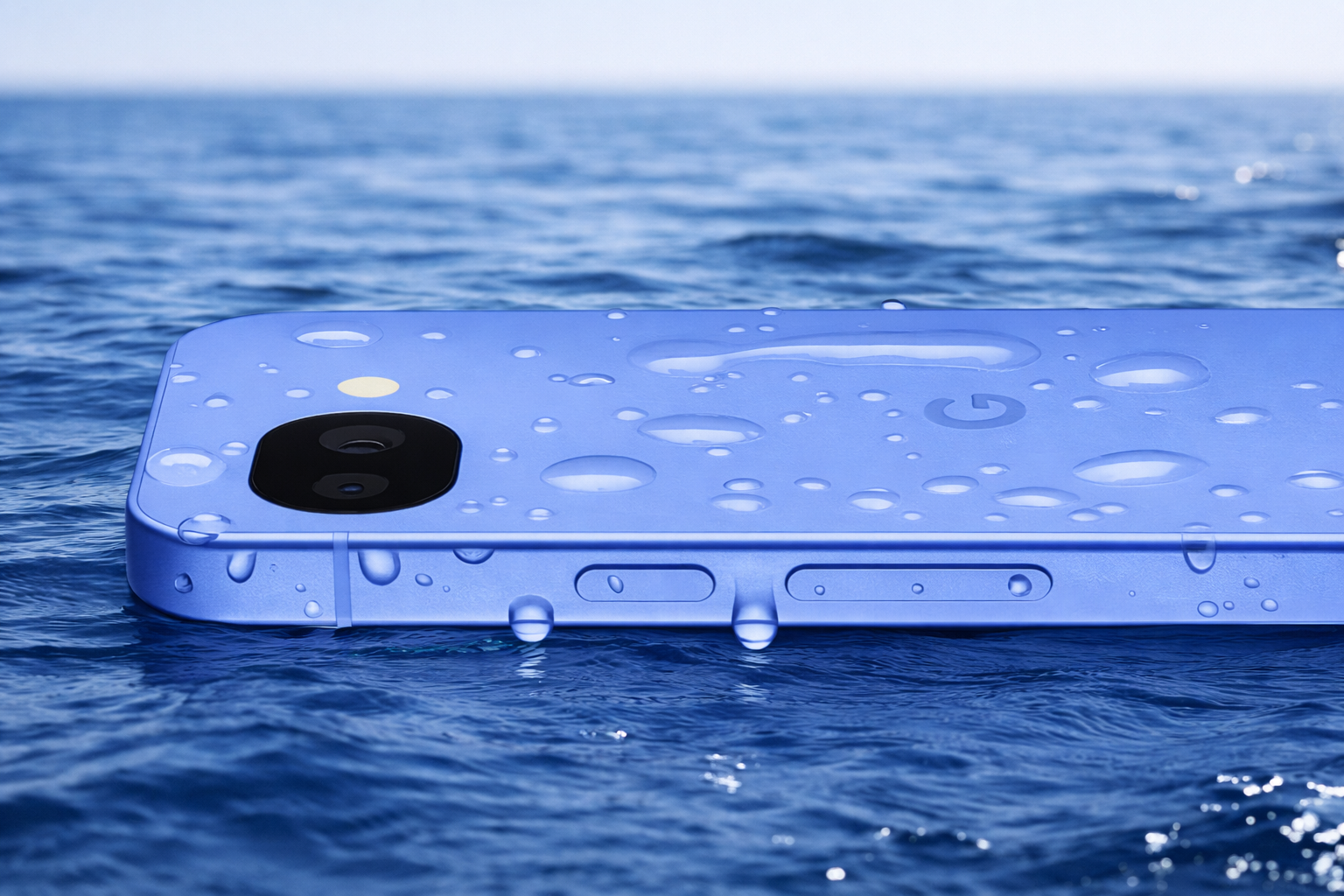
The new Google Pixel 10a became one of the best-selling smartphones of 2026, but a few hidden settings can dramatically improve your daily experience. Pixel 10a offers a strong hardware foundation, yet out of the box Google tunes it to be “good enough for everyone” rather than perfect for you.
If you want your phone to run at full potential instead of saving resources where it doesn’t matter, go through this checklist. It takes less than five minutes, but the difference in performance, visuals, and usability is immediately noticeable.
1. Unlock the Display: 120Hz Instead of Lag
Google continues its strange habit of shipping a 120Hz panel but limiting it to 60Hz by default. Without changing this setting, Android 16 may feel heavier and less responsive than it actually is.
Once enabled, the interface becomes smoother, animations feel natural, and scrolling finally matches flagship-level expectations. This is one of those settings that instantly changes how the phone feels in your hand.
- path settings > display > smooth display;
- what to do enable the toggle. yes, it slightly increases battery usage, but tensor g4 and the exynos 5400 modem are efficient enough that you won’t notice a drop in battery life, while the smoothness improvement is obvious.
After enabling 120Hz, the phone feels faster even in basic tasks like scrolling feeds or switching apps. It’s not about raw performance, but perceived speed, which matters more in everyday use. Once you try it, going back to 60Hz feels outdated.
2. Fix Oversaturated Colors
By default, the display uses “Adaptive” mode, which boosts colors aggressively. It makes the screen look ярче, but the image becomes unrealistic — reds turn orange, and skies look artificially neon.
If you plan to edit photos or simply want accurate colors, this mode becomes a problem. Switching to a more natural profile brings balance and makes the display more comfortable for long-term use.
- path settings > display > colors;
- what to do choose natural. the screen will immediately look calmer, and you will see true-to-life colors in photos and videos.
This change is subtle at first, but important over time. Your eyes get less tired, and your photos look the same across devices. It’s especially useful if you share content or work with images.
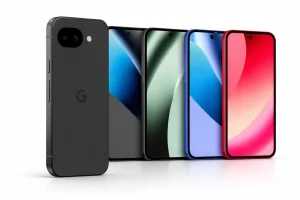
Google Pixel 10a: Новый король среднего сегмента, которого мы ждали
Google Pixel 10a получил обновлённый дизайн без фирменной «полосы», экран 120 Гц с яркостью 2000 нит, процессор Tensor G4 и 7 лет обновлений. Разбираем, стоит ли он своих денег.
3. Learn Satellite SOS Before You Need It
Pixel 10a finally introduces satellite communication, but it’s not as simple as sending a message. The system requires a clear view of the sky and proper phone positioning.
In a real emergency, you won’t have time to figure it out. That’s why Google added a demo mode — so you can understand how it works in a safe environment.
Get breaking news on WhatsApp
- path settings > safety & emergency > satellite sos;
- what to do tap try a demo. this simulation teaches you how to position the phone to catch a satellite signal.
Practicing in advance removes stress later. You build muscle memory and understand how the system behaves. In critical situations, that knowledge can save valuable time.
4. Clean Up Quick Settings Panel
Android 16 adds more tiles to the quick settings panel, but many of them are unnecessary. Leaving everything enabled makes the interface cluttered and slows down access to useful tools.
Customizing this panel improves usability immediately. You reduce visual noise and keep only the features you actually use daily.
Tech Insights in Your Inbox
what to do fully expand the quick settings panel, tap the edit icon, and remove unused tiles. move live caption and qr scanner to the top for faster access.
After cleaning it up, the system feels more personal. You spend less time searching for functions and more time using them. Small changes like this have a big impact on everyday efficiency.
5. Tame the Camera: Disable Unnecessary Assistance
The Camera Coach feature powered by Gemini can be helpful for beginners. However, if you already understand composition basics, it may become distracting instead of useful.
Constant prompts and suggestions can break your focus while shooting. Turning it off gives you full control over framing and timing.
- what to do open the camera app, tap the coach icon, and disable it if ai suggestions distract you;
- instead make sure grid 3×3 is enabled. it’s a more reliable way to keep composition balanced.
With fewer distractions, you shoot faster and more confidently. The grid provides structure without interfering. It’s a classic tool that still works better than AI hints in many cases.
Bonus for Advanced Users
If you use Pixel 10a as your main work device, check the Battery section. Disable Adaptive Charging during the day if you need faster top-ups.
This feature is designed for overnight charging, not daytime use. During the day, it simply slows down the process artificially.
Adjusting this setting gives you more control over charging behavior. It helps you get power when you actually need it. For active users, this makes a noticeable difference.
Більше новин в телеграмі