
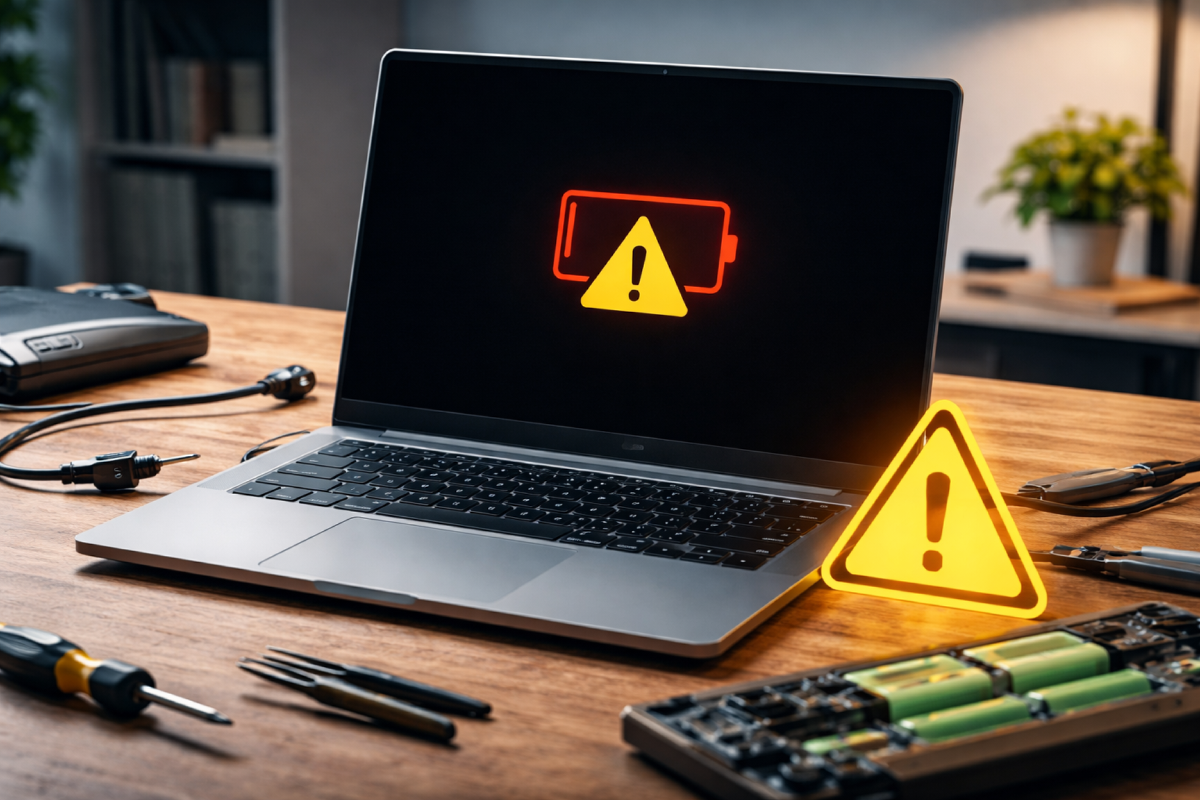
Your laptop shows 100% battery, but the moment you unplug the charger it turns off? That’s not a minor glitch — it’s a clear sign of a power supply issue. If your laptop only works when plugged in and immediately shuts down on battery power, the problem may range from battery wear to motherboard power circuit failure. Here’s what actually causes it and how to diagnose it before you face expensive repairs.
A common scenario: Windows shows the battery is charging and fully detected, yet as soon as you disconnect the power adapter, the laptop shuts off instantly. This usually means that battery power is not actually being delivered to the motherboard, even though the operating system “sees” the battery.
The root cause may be lithium-ion battery degradation, a faulty Battery Management System (BMS), damaged power circuits, or Windows power management errors. Understanding how laptop power systems work helps you identify the issue early and prevent further hardware damage.
Why Your Laptop Detects the Battery but Won’t Run on It
The symptom seems confusing: the battery icon shows charging, capacity appears normal, but the laptop only runs while plugged in. Unplug the charger — and it dies instantly.
This indicates that the power path from the battery to the motherboard is either broken, blocked, or unable to handle load. For a laptop to run on battery, it needs stable voltage output. A worn-out battery may still report charge percentage but fail under real load when the CPU or GPU draws power.
- the battery controller reports data but doesn’t deliver current;
- voltage drops under startup or heavy load;
- the protection circuit blocks discharge;
- the physical power delivery path is damaged.
Battery percentage shown in Windows does not always reflect real capacity. A laptop can detect a battery without receiving usable energy from it. That’s why 100% battery does not guarantee actual runtime.
Six Main Reasons a Laptop Won’t Work Without Being Plugged In
Modern laptop batteries are intelligent modules with internal circuitry, thermal protection, and cell balancing. The issue may be chemical (battery wear) or electronic (board-level failure).
Here are the most common technical causes confirmed by repair diagnostics.
- Battery Wear and Capacity Loss. Lithium-ion batteries typically last 300–800 charge cycles. Over time, internal resistance increases, voltage sags under load, and the battery can no longer hold or deliver charge.
- Faulty BMS (Battery Management System). If the controller detects deep discharge, overheating, or cell imbalance, it may permanently block discharge for safety reasons.
- Corroded or Damaged Battery Contacts. Poor electrical contact increases resistance and prevents stable current flow.
- Windows Power Management or ACPI Driver Issues. After Windows or BIOS updates, battery detection may malfunction due to driver conflicts.
- Motherboard Power Circuit Failure. Damaged MOSFETs or charging ICs can prevent switching from AC power to battery mode.
- Swollen or Physically Damaged Battery. Many laptops disable battery operation automatically if swelling is detected.
In most cases, replacing the laptop battery solves the issue. However, if the problem lies in the motherboard power circuitry, professional board-level repair is required. Ignoring the issue can lead to further component damage.
How to Check Laptop Battery Health in Windows (No Third-Party Software)
Windows includes a built-in tool called powercfg that generates a detailed battery health report. It shows actual battery capacity in mWh rather than just percentages.
Follow these steps:
- Open Command Prompt as Administrator.
- Type: powercfg /batteryreport
- Open the generated file battery-report.html.
- Compare Design Capacity and Full Charge Capacity.
If the Full Charge Capacity is 20–30% lower than Design Capacity, the battery is significantly worn. If degradation exceeds 40%, replacement is strongly recommended. This method provides the most accurate battery health check on Windows laptops.
How to Find Apps That Drain Your Battery in the Background
The battery report also logs power usage history. To identify excessive battery drain, review these sections carefully.
Focus on Usage History, Battery Capacity History, and Battery Usage.
- check for battery drain while the screen was off;
- look at “Suspended” system states with active discharge;
- monitor sudden capacity drops after software installs;
- review “Battery usage by app” in Windows Settings.
You can also run:
powercfg /energy
This creates an energy-report.html file highlighting processes and drivers preventing proper sleep or energy saving. It helps identify background apps, drivers, or services that keep your laptop from entering low-power mode.
Why Running Only on AC Power Is a Risk
Using a laptop only while plugged in increases the risk of data loss during power outages or voltage spikes. A failing battery may also overheat or physically deform the chassis.
Early diagnostics prevent expensive motherboard repairs. Using a quality replacement battery and avoiding deep discharge extends your laptop’s lifespan.
If your laptop shuts down when unplugged, don’t ignore it. In most cases, battery replacement fixes the issue. The sooner you diagnose it, the lower the risk of serious hardware damage.
More tech updates on Telegram


Більше новин в телеграмі